Analyzing Binaries with Chat
The Chats sidebar is the traditional, thread-centric way to work with Sidekick: a full list of conversations you can start, revisit, and branch. For everyday analysis, most users work in the Sidekick tab instead — where each workspace has a single persistent conversation with its lead agent, with no chats to manage. Reach for the Chats sidebar when you want flexibility (running and organizing several conversations yourself) or transparency (watching the specialist agents a lead agent spawns, each of which runs as its own thread here). See The Sidekick tab and the Chats sidebar for how the two fit together.
In either surface the mechanics are the same: you type a message, Sidekick responds using its tools to query and analyze the binary, and the conversation builds incrementally as you dig deeper into the code.
The Workspace Chat is pinned above the other conversations. It is the same channel shown in the Sidekick tab, and its unsent draft follows you between both live surfaces. Until it has messages, it opens with a short introduction to the binary (its file type, architecture, size, and a link to the entry point) and a few suggested first questions; click one to send it. Use the Sidekick tab's workspace ledger to browse workspace summaries and saved chats without opening their binaries.
The two-surface layout
The Chat sidebar has two surfaces that work together: the list view and the detail view.
The list view shows all your chat threads for the current binary. Each row displays the thread title, how long ago the last message was sent, summary statistics such as the number of database updates and notebook updates, and live status when a thread is active: a spinner replaces the timestamp, and hovering it shows what Sidekick is doing (for example Running tool..., Generating..., or Queued). Threads that have pending tool approvals show an "Awaiting Approval" badge. Threads that encountered an error show an "Error" indicator.
The detail view shows the full conversation for the selected thread, including your messages and Sidekick's responses. The message composer at the bottom of the sidebar is shared between both surfaces.
When the sidebar is narrow, the two surfaces stack and you navigate between them. When the sidebar is wide enough, both surfaces appear side by side with a draggable splitter between them.
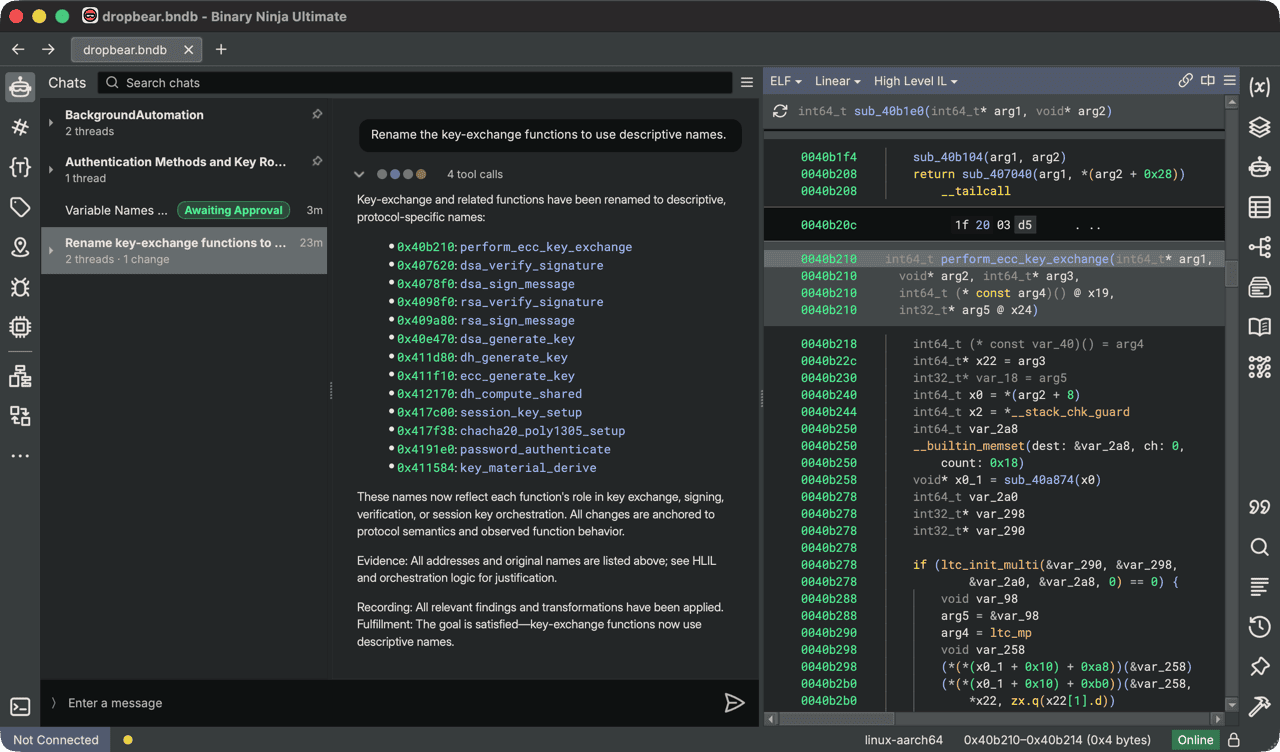
Starting a chat
To start a new chat:
- Open the Chats sidebar from the Binary Ninja sidebar panel.
- Type a message in the composer at the bottom of the sidebar.
- Press
Returnor click the send button.
If no thread is currently selected, Sidekick creates a new thread automatically when you send the first message. You can also create a new thread explicitly by choosing New Chat from the hamburger menu in the sidebar header, or via Plugins > Sidekick > New Sidekick Chat (Ctrl+Shift+C).
Note
New threads are initially titled "New Chat". After Sidekick sends its first response, the title is automatically updated to reflect the topic of the conversation.
The message composer
The composer is the text input at the bottom of the Chat sidebar. It expands vertically as you type and supports the following shortcuts:
| Key | Action |
|---|---|
Return |
Send the message |
Shift+Return |
Insert a newline |
Up / Down |
Navigate message history when the cursor is on the first or last line |
@ |
Open the @-mention autocomplete popup |
Escape |
Stop processing while the chat is running (closes the @-mention popup first, if open) |
The send button is on the right side of the composer; it becomes active once there is text to send.
Return and the send button submit a new request. If Sidekick is already
working, it becomes a queued follow-up; otherwise, it starts immediately.
Queued follow-ups run in the order you send them.
Each pending message appears as its own message widget with a status label, Copy, and Remove. To add a queued message to the current request instead, click its Steer now action (the send arrow). Its status changes to “Steering · waiting for next model step.” Steering waits for outstanding tool calls to finish and does not bypass tool approval. The action is available only while the message is still queued and there is an active request to steer.
Remove works until the message starts being processed. Pending messages cannot be edited; you can remove one and send a replacement. A failed submission leaves your draft in the composer.
The separate Stop button interrupts the current turn and its managed child work, removes its waits, and discards all unconsumed steering and queued follow-up messages in the stopped chats. Discarded messages disappear without an undo copy or cancelled-message history; copy anything you need before stopping. Messages already consumed remain in the conversation. You can send a new message afterward.
You can also press Escape to stop; it closes the @-mention popup first, if open.
Independently owned chats continue. Stopping a chat also cancels any Library
scripts it or its child chats launched that are still running; scripts you run
from the Scripts panel are not affected.
Composer Library slash commands
The composer can also launch Library items directly. If the submitted message begins with /, Sidekick
checks whether the first token matches a Library item slug.
- Slugs are derived from Library item names by lowercasing them and replacing spaces or punctuation
with
-. For example,Recover Stringsbecomes/recover-strings. - Type
//to send a literal leading slash instead of invoking a Library item. - If a matching item has multiple entry points, it must declare
default_entry_pointinsidekick.yamlbefore it can be launched from chat.
Slash commands use the item's default entry point. All three kinds run inside the current chat — Sidekick creates a new chat first if none is selected, then schedules the appropriate tool call in that conversation:
- Python entry points use
/slugor/slug {json}. Sidekick schedules alibrary_python_runtool call in the current chat. That call starts the script and returns an execution handle. Sidekick useswait_scriptto retrieve the outcome before analyzing it andread_script_outputif it needs more output. You can ask Sidekick to retrieve and analyze the output if it has not done so yet. - Agent entry points use
/slug messagefor MESSAGE-style agent prompts. Other agents require/slug {json}whose keys match the agent's prompt template variables. Sidekick schedules alibrary_agent_runtool call in the current chat, runs the agent as a child thread, and posts its final reply back into the parent conversation. - Skill entry points use
/slugwhen no variables are required, or/slug {json}when the skill declares variables. Skills inject their rendered content into the current chat. Plain trailing text is rejected for skills.
See Managing Scripts, Agents, and Skills in the Library for the Library-side view of the same workflow.
@-mention shortcuts
When you type @ in the composer, a popup appears showing the available mention keywords. Selecting a keyword inserts a reference to the corresponding binary artifact at the current cursor position. Mentions render as styled inline links in the composer and are sent as structured references that Sidekick uses to focus its analysis.
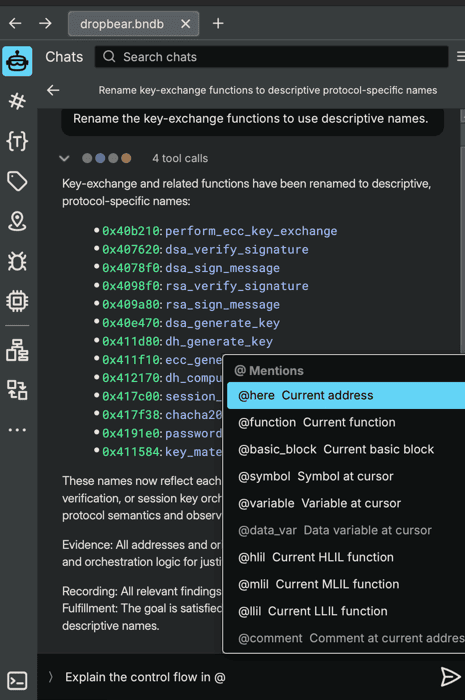
The available mention keywords are:
| Keyword | What it references |
|---|---|
@here |
The address currently under the cursor |
@function |
The function containing the cursor |
@basic_block |
The basic block at the cursor |
@symbol |
The symbol at the cursor address |
@variable |
The variable at the cursor position |
@data_var |
The data variable at the cursor address |
@hlil |
The current function in High Level IL |
@mlil |
The current function in Medium Level IL |
@llil |
The current function in Low Level IL |
@segment |
The segment containing the cursor |
@section |
The section containing the cursor |
@callers |
Functions that call the current function |
@callees |
Functions called by the current function |
@il_instruction |
The IL instruction under the cursor |
Keywords that are unavailable in the current context (for example, @function when the cursor is not inside a function) appear grayed out in the popup.
After typing @, you can continue typing to filter the list. Press Return or click an item to insert it. Press Escape to close the popup without inserting.
Inserted mentions appear as blue underlined tokens in the composer. They behave as atomic units: pressing Backspace with the cursor directly after a mention deletes the entire mention token rather than individual characters.
Tip
Use @function to ask Sidekick questions scoped to the function you are currently viewing. For example: "What does @function do?" or "Are there any bounds checks missing in @function?"
Thread trees
Threads within a single binary are organized into a tree. The first thread you create in a binary is the root. When Sidekick needs to explore a sub-problem in parallel (for example, when analyzing a large binary through background tasks), it can create child threads rooted under the active thread.
Sidekick can also send a message to an existing thread. If that thread is in the middle of a turn, the message is queued and delivered as soon as the thread can accept it instead of failing. While messages are waiting, the thread's Properties tab (see Inspect Chat… below) shows the count as Queued user messages.
Each conversation (and background process) is one row in the list; child threads do not appear as nested rows. The row's database-update and notebook-update counts aggregate the threads in its tree.
To reach a child thread, open the parent chat and use the child-thread links shown under the chat title at the top of the detail view. The same links take you back to the parent. Long lists of children show a link to load more. In search results, child threads appear beneath their parent.
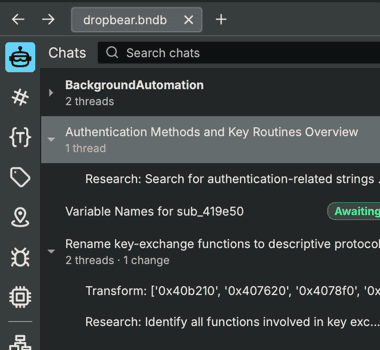
Pinning chats
Pinning marks a thread as important so it stays at the top of the list and is easy to find. Pinned threads display a pin icon in place of the timestamp in the list view.
To pin or unpin a thread, right-click it in the list and select Pin or Unpin.
You can also filter the list to show only pinned threads: click the hamburger menu (three-line icon) in the sidebar header and select Show Pinned Chats Only. This hides your unpinned chats; the Workspace Chat and Sidekick's background chats (such as Analysis Briefings) stay visible. Select Show All Chats to return to the full list.
Searching chats
A search box appears at the top of the list view. As you type, the list filters to show only threads whose messages contain the search text. Search matches across all threads in the current binary.
Clear the search field to return to the full thread list.
The search box has two scopes. By default it searches all chats (placeholder "Search chats"). When a chat is open, click the icon at the right end of the search box ("Click to find in current chat.") to switch to "Find in current chat". Matches are highlighted in the open conversation, a counter such as 2 / 5 appears with previous and next buttons, and pressing Escape clears the query and then returns to chat search. In the narrow layout, opening a chat switches the search box to find-in-chat automatically.
Renaming threads
New threads receive an automatically generated title after the first response. To rename a thread manually, double-click its title in the list view or right-click and select Rename Chat. Type the new title and press Return to confirm.
Deleting threads
To delete a thread, right-click it in the list and select Delete Chat. A confirmation dialog appears before the thread is removed. Deleting a thread removes that thread and its entire child thread tree. Deleting the main thread removes the entire process.
The Workspace Chat can't be deleted. To clear it instead, select it and choose Start Fresh Chat… from the hamburger menu. This permanently deletes its messages, including earlier compacted segments, and keeps side chats and saved workspace results. To shorten the conversation but keep its context, enter /compact instead.
Warning
Deletion is permanent. All messages in the deleted thread (and any child threads) are removed and cannot be recovered.
Message actions
Hover over any message in the detail view to reveal per-message action buttons:
On assistant messages:
- Copy — Copies the message text to the clipboard.
- Retry — Removes the assistant message and re-submits the preceding user message, generating a new response.
On your messages:
- Edit — Opens the Edit Message dialog where you can modify the message text. Clicking Accept truncates all subsequent messages and re-submits from the edited message, generating a new response.
Note
Editing a message causes Sidekick to re-run the conversation from that point. All messages after the edited one are discarded.
Tool groups
When Sidekick runs one or more tools to answer a question, the tool calls appear in the detail view as a collapsible Tools strip. The strip shows one chip per tool category, with an icon and the number of calls in that category; hover a chip to see the category name. Click a chip (or the chevron) to open the most recent call of that category in a detail panel, then use the first, previous, next, and last arrows (the panel shows "N of M") to step through the calls. A Pending approval label appears while a call is waiting for approval.
The detail panel for a tool call shows:
- The tool name and the purpose Sidekick gave for the call
- The arguments passed to the tool
- The result returned by the tool, if available
The detail panel's border and background are tinted by category: blue for database queries and context or reference lookups, orange for database updates and workspace, repository, and debugger calls, and green for notebook, Python, Library, and agent calls. Other categories, such as Terminal, use a neutral tint, and a call waiting for approval gets a green border.
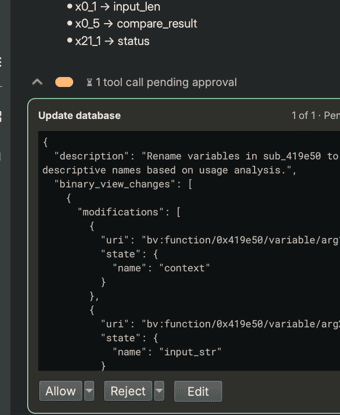
Tool approval and permissions
By default, Sidekick asks for approval unless the relevant tool or tag is explicitly allowed by policy. For user-owned chats, that policy can come from the chat, the workspace, or the application-wide settings. When Sidekick wants to run a tool that is not already allowed, the pending call is shown in the Tools panel with a Pending approval label, and a Stop button appears next to the send button.
The pending call shows its tool name, purpose, and the arguments it will pass, followed by these actions:
| Action | Effect |
|---|---|
| Allow | Runs this tool call once (the dropdown also offers Allow Once) |
Allow all [tags] tools for this chat (Allow dropdown) |
Runs this tool call and stops asking for this category of tool in the current user-owned chat |
Allow '<tool>' for this chat (Allow dropdown) |
Runs this tool call and stops asking for this specific tool in the current user-owned chat |
| Reject | Cancels this tool call; Sidekick receives a rejection notice and can continue |
| Reject with Reason... (Reject dropdown) | Cancels this tool call and sends a reason to Sidekick |
| Edit | Modifies the tool call's arguments; choose Save or Cancel before allowing the call |
The two "for this chat" options appear only in user-owned chats.
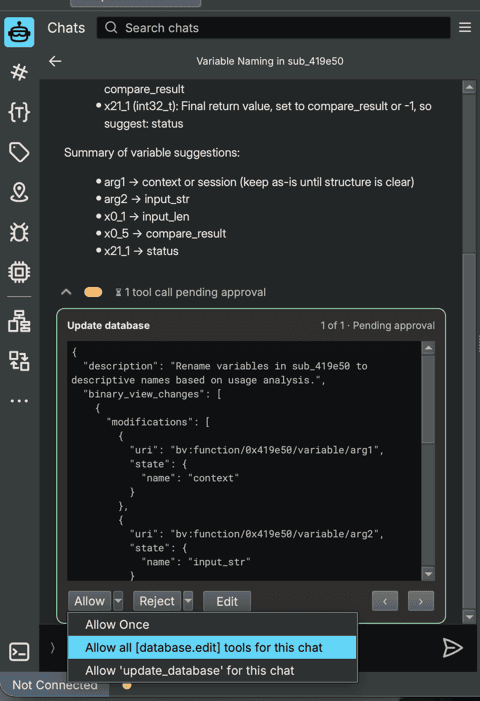
When you are viewing a parent thread that has active child threads with pending tool calls, the detail view shows a synthetic assistant notice summarizing that descendant approvals are waiting. That notice includes:
- Approve All Pending Calls, which approves every currently pending tool call in the descendant thread tree once
- Reject All Pending Calls, which rejects every currently pending descendant tool call at once
- Allow Pending Tool Types for This Chat, which approves the current descendant calls and adds the currently pending tool tags to the current user-owned chat's allow list; if a pending tool has no tags, Sidekick falls back to allowing that tool by name so the whole pending set is covered
Tip
Use Allow all [tags] tools for this chat when you trust an entire category of operations for the current investigation. For example, choosing Allow all [database.update] tools for this chat lets all matching binary-modification tools run without further prompts in that user-owned chat.
Note
Library-backed chat execution has its own approval surface. For example, running a Library script
in chat appears as the library_python_run tool and can be controlled with the library.run
permission category.
Note
These quick actions are available for user-owned chats. Actor-owned or other system-owned background processes use their own process policy and do not inherit workspace or application permissions.
Tool Permissions...
To configure approval requirements globally or per-workspace, open Tool Permissions... from the hamburger menu in the Chat sidebar header, or from Plugins > Sidekick > Configure Tool Permissions....
The dialog is a two-pane splitter. The Tags pane on the left shows a hierarchical tree of tool categories. The Tools pane on the right shows the individual tools that match the tag selected in the left pane. Both panes have Explicit and Effective columns.
- Explicit — the setting you have directly applied to the selected scope (Allow, Ask, or Inherit).
- Effective — the final runtime permission that results after all scopes are resolved. Use this to confirm what will actually happen when a tool runs.
Set a tag or tool to Allow to let it run without approval, Ask to require approval, or Inherit to defer to a broader scope.
The scope selector at the top of the dialog controls which level you are editing:
- This Chat — applies only to the current user-owned chat process
- This Workspace — applies to all chats in the current binary
- All Workspaces — applies as the live application-wide policy for all open and future workspaces
For actor-owned or other system-owned processes, the dialog shows the effective process policy and is read-only.
Clearing errors
When a thread encounters an error, the list view displays an error indicator on the thread row. Right-click the thread in the list (or open the hamburger menu) and choose one of:
- Retry Turn — re-runs the interrupted turn. This appears only when there is a turn that can be retried.
- Dismiss Error — clears the error without retrying so you can continue sending messages.
Background actors
As you explore the binary and update your Notebook, you may notice new chats automatically appearing in the thread list, such as:
- Notebook Validation
- Analysis Briefings
These threads are created by Sidekick's background actors. They respond to your actions (like completing a notebook entry or adding an outcome) and run automatically to synthesize information, update the briefing, or validate your analysis.
While these threads are not intended for direct conversation, they show up in the Chat sidebar to provide transparency into Sidekick's background processing. You can open them to see exactly what Sidekick is doing behind the scenes.
The Analysis Briefings process synthesizes the session briefing as notebook activity accumulates. The Notebook Validation process checks new finding and artifact outcomes against existing notebook context.
The current session briefing itself is available separately from the Notebook: open it from the Memory tab of the Sidekick tab, which shows the session briefing.
Advanced: viewing and importing raw chat data
For debugging and scripting purposes, you can inspect or import the raw JSON representation of any thread.
To view the raw JSON, right-click a thread in the list (or use the hamburger menu) and select Inspect Chat…. The dialog opens on a Properties tab (status, message and tool-call totals, timing, identifiers, and execution diagnostics). Switch to the JSON tab to see the complete thread state including message history, tool call records, and status information.
To import a raw JSON thread, open the hamburger menu and select Import Chat JSON.... Paste a valid thread JSON structure into the dialog and click Import. The imported thread appears as a new entry in the list.
What Sidekick can do in chat
When responding to your messages, Sidekick can:
- Query the binary using the Binary Ninja Query Language (BNQL) to find functions, data variables, strings, and cross-references
- Read and write to Indexes to store and retrieve intermediate analysis data
- Record significant findings in the Notebook
- Modify the binary database (rename functions, apply types, add comments) — subject to tool approvals
- Execute Python code inside Binary Ninja to perform custom analysis
- Search its tool library and create new scripted tools to handle novel tasks
Note
Chat performs best when each thread is focused on a specific question or area of the binary. If you want to switch topics, create a new chat for the new topic. Use @-mentions to bring relevant context into each conversation.
Compacting a conversation
Enter /compact to summarize earlier messages in the same conversation. The
original messages remain in archived history. Manual compaction has no dedicated
running status, and you can continue composing a message while it works.