Visualizing with Code Maps
Code Maps let you create persistent, configurable call-graph views of your binary. Each map focuses on a set of root functions you choose and fans out through their callers and callees to show the surrounding call neighborhood. You can overlay entries from Indexes onto that neighborhood so that points of interest appear directly inside the relevant function nodes.
Code Maps are managed in the Sidekick Resources sidebar and saved with the binary's Sidekick workspace, so they are there when you reopen the file. To move them to another machine, see Sharing Analysis Data. You can create as many maps as you need, name them for the analysis question they answer, and return to them at any time.
Opening Code Maps
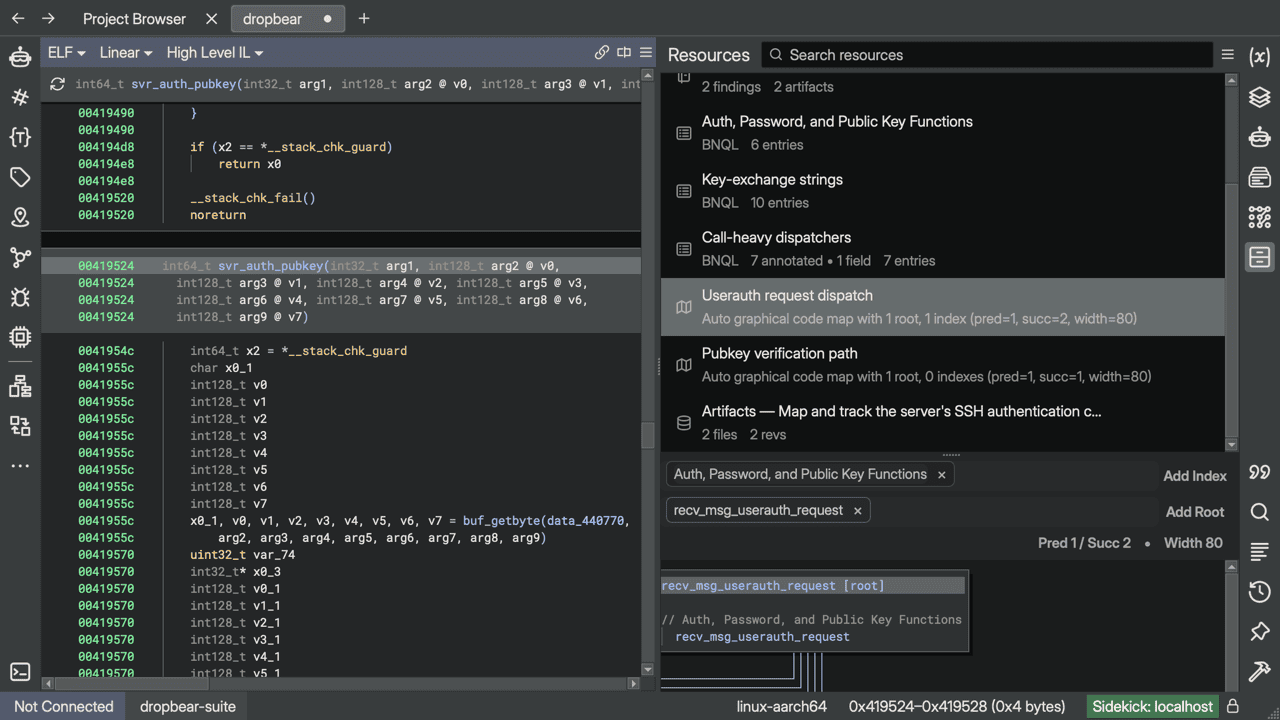
Open the Sidekick Resources sidebar from the sidebar panel on the right side of the Binary Ninja window. For an overview of the sidebar's browse list and detail layout, see Browsing Workspace Resources.
When no maps exist yet, choose New Code Map to create your first map.
Creating a code map
- Open Sidekick Resources.
- Choose New Code Map. Sidekick seeds the map with the function at your current cursor position as the first root, if one is available.
- Resources switches to the detail view for the new map, showing the flow graph and the configuration controls above it.
- To rename the map, right-click it in the browse list and choose Rename, or choose Rename Resource from the hamburger menu. Type the new name and press
Return.
Auto mode: configuring roots, indexes, and depth
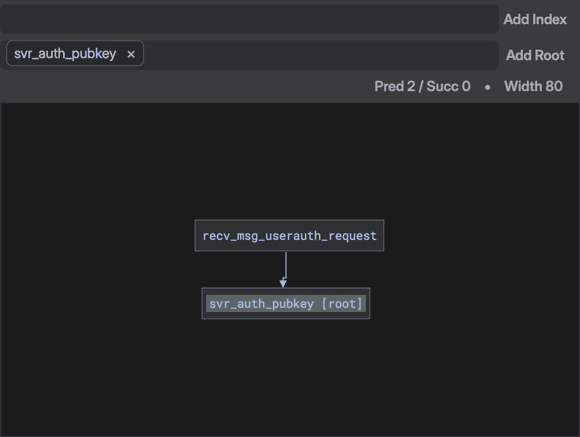
A new code map starts in auto mode. In auto mode, the graph is computed automatically from a set of root functions, hop counts, and optional index overlays. Changes to any of these settings immediately regenerate the graph.
Adding and removing roots
Roots are the seed functions from which the graph grows. They appear in the roots chip strip above the graph, displayed as colored chips showing the function name.
To add a root:
- Click Add Root in the roots chip strip.
- Choose one of the two options in the menu:
- Enter address or name... — opens a dialog where you can type a function name, a hex address (
0x401000), or a full function URI (bv://xxxxxxxx/function/0x401000). Sidekick looks for an exact name match first, checking the active view before the other open views, and falls back to a case-insensitive match. The first match wins. Addresses can be given in hex (0x401000) or decimal. - Current Function — adds the function at your current cursor position.
To remove a root, click the × on its chip. To clear all roots at once, right-click the chip strip and select Clear All Roots.
Attaching indexes
Indexes overlay their entries onto the graph nodes that contain them. Attached indexes appear in the indexes chip strip above the roots strip.
To attach an index:
- Click Add Index in the indexes chip strip.
- Select the index from the dropdown menu of available workspace indexes.
If you have not created an index yet, see Building and Using Indexes to get started.
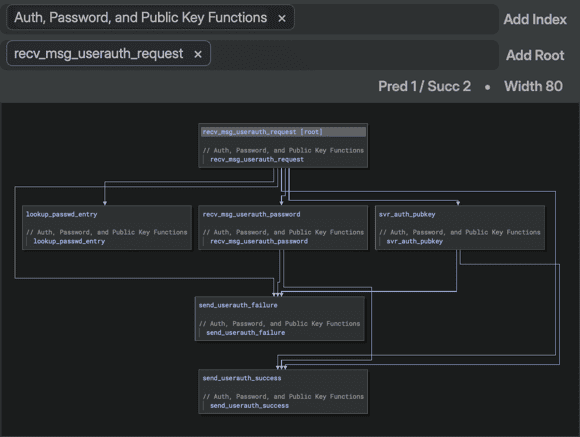
When an index is attached and its entries fall within the address ranges of functions in the graph, those entries are shown as indented lines inside the corresponding function node. If an entry has metadata (such as type annotations or categories), that metadata appears as a comment line above the entry text.
To remove an attached index, click the × on its chip.
Note
The graph display updates automatically when index content changes. If a running analysis populates a new index entry that falls inside one of the graph's functions, the map redraws within a few seconds.
Adjusting depth
The Depth button in the settings bar controls how many hops out from each root the graph explores. Click the button to open the depth menu and choose a value from 0 to 10.
- Depth 0 — shows only the root functions themselves.
- Depth 1 — shows direct callers and callees of each root.
- Depth 2 — a newly created map starts at this value, showing two hops out in both directions.
When indexes are attached, the graph prunes functions that have no index entries, are not roots, and do not lie on a call path between two functions that are roots or have index entries. If none of the attached indexes has entries inside the graph, only the root functions are shown. This keeps the map focused on what is relevant and removes uninteresting intermediate functions.
If the predecessor count and successor count differ, the Depth button displays them separately as Pred N / Succ M. This state is only reachable programmatically (for example, when Sidekick's AI assistant configures a map via the update_code_map tool).
Adjusting node width
The Width button controls the maximum character width of each entry line inside a node. Lines longer than this limit are truncated with .... Click the button and choose a preset value (multiples of 8 from 8 to 128) or select Custom... to enter an exact value.
Navigating the graph
Clicking any token in the graph navigates the active Binary Ninja view to the corresponding address. Clicking a function name navigates to the function start. Clicking an entry line navigates to the entry's primary address within the function.
Tip
To keep a map visible while you explore the binary, pin the map to a separate pane. See Pinning a map to a pane.
Manual mode: defining your own graph
A map in manual mode has a graph you define yourself. Manual mode lets you create arbitrary nodes and edges that are not constrained by the binary's call graph.
Manual maps are useful when you want to sketch out a conceptual relationship diagram, document a protocol's message-handling flow, or capture a summary graph that the AI assistant has built for you.
Getting a manual map
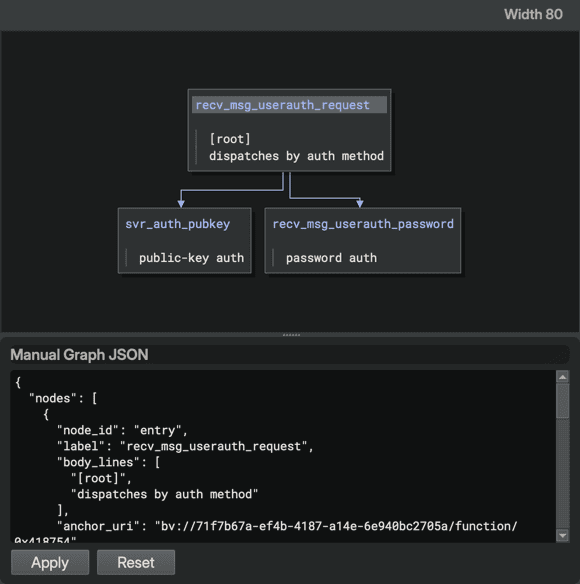
There is no menu command in Resources to convert an auto map to manual. A map becomes manual when you ask the assistant in Chat to build or convert it. The detail view then shows the rendered manual graph. The Depth button and the roots and indexes strips are hidden; only Width remains. To change the graph, ask the assistant to update the map.
Warning
Conversion is permanent. Once a map is in manual mode, it cannot be reverted to auto mode.
Manual graph format
A manual graph is a JSON object with two arrays: nodes and edges. You do not write this JSON yourself: describe the nodes and edges you want in Chat and the assistant builds the graph for you. The fields below show what a manual graph can contain.
Node fields:
| Field | Required | Description |
|---|---|---|
node_id |
Yes | Unique identifier for the node within this map |
label |
Yes | Display name shown at the top of the node |
anchor_uri |
No | A function URI (bv://xxxxxxxx/function/0x401000) that makes the node's label clickable and navigates to that function |
body_lines |
No | List of strings shown as indented lines below the label |
metadata |
No | Object of key-value pairs shown as a comment line |
Edge fields:
| Field | Required | Description |
|---|---|---|
source_id |
Yes | node_id of the source node |
target_id |
Yes | node_id of the target node |
edge_id |
No | Unique identifier; auto-generated as source_id->target_id if omitted |
label |
No | Optional text on the edge (not currently rendered) |
metadata |
No | Object of key-value pairs attached to the edge |
Example:
{
  "nodes": [
    {
      "node_id": "entry",
      "label": "main",
      "anchor_uri": "bv://abcd1234/function/0x401000",
      "body_lines": ["[root]", "entry point"]
    },
    {
      "node_id": "parse",
      "label": "parse_config",
      "anchor_uri": "bv://abcd1234/function/0x401200",
      "body_lines": ["reads /etc/app.conf"]
    }
  ],
  "edges": [
    {
      "source_id": "entry",
      "target_id": "parse"
    }
  ]
}
Note
Anchor URIs are canonicalized automatically when the assistant submits the graph. A short-form URI (bv:function/0x401000) is expanded to the full form.
Pinning a map to a pane
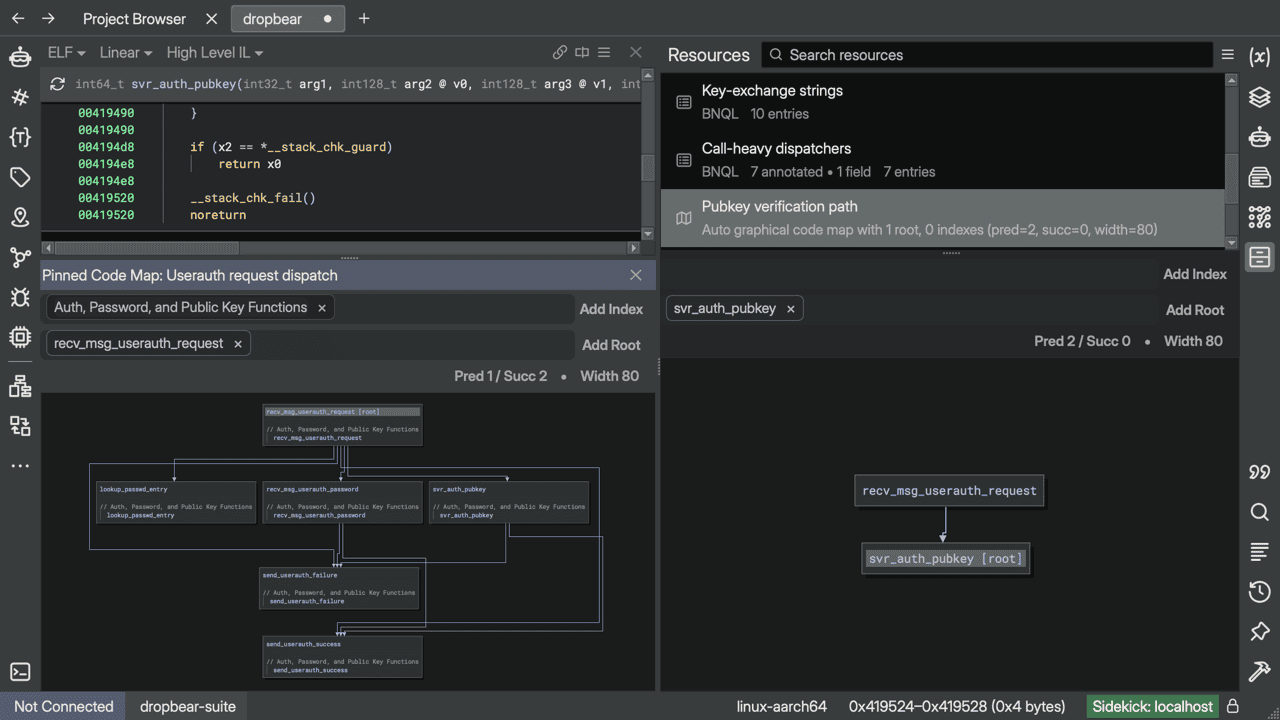
Pinning opens a map in a standalone Binary Ninja pane so you can keep it visible while navigating elsewhere.
- Find the map in the Resources browse list.
- Right-click the map and choose Pin Code Map to New Pane.
The map opens in a new horizontal pane. The pinned pane is independent of Resources — it shows the same map and reacts to the same changes, but closing the sidebar does not close the pinned pane, and vice versa.
Searching and renaming maps
Searching: Use the search box in Resources. It matches map names, the summary line, root function addresses, and (for manual maps) node and edge content. Each matching row shows the number of matches (for example, 2 matches) at the right of its title line and a preview of the first match below it.
Renaming: Right-click the map in the Resources list and choose Rename, or select the map and choose Rename Resource from the hamburger menu. Type the new name and press Return. When the sidebar is narrow enough that the list and detail views are shown one at a time, you can also double-click the title in the detail view header bar.
Deleting: Right-click a map in the list and choose Delete, or select the map and choose Delete Resource from the hamburger menu. A confirmation dialog appears before deletion.
Integration with Chat
The assistant can inspect named code maps with query_code_maps and create or update them with update_code_map.
For example, you can ask:
- "Do we already have a code map that shows TLS negotiation?"
- "Show me the code map that links the decryptor to its callers."
- "Create a code map showing the functions involved in TLS negotiation."
query_code_maps supports three common patterns:
- No arguments — list the visible code maps.
ref=...— resolve one map by name or resource ID prefix.search=...— search map names, roots, linked indexes, and manual graph content.
When you ask to create or update a map, Sidekick uses update_code_map to build or modify the corresponding resource shown in Resources. You can refer to those maps by name in subsequent Chat requests.
Integration with Indexes
Code maps read from Indexes to overlay their entries onto graph nodes. Any index in the current workspace can be attached to a map. As the index grows (through manual curation, AI-driven population, or query import), the map reflects the new entries without any manual refresh.
To build an index for use with a code map, see Building and Using Indexes. If you want to populate an index using semantic search, see Using Semantic Indexing.
Reference: function URI format
Roots and manual node anchors use a function URI to identify a specific function in a specific binary view. Sidekick generates and normalizes these URIs automatically when you add roots through the UI, but you may encounter them in manual graph definitions or when working with the API.
Long form (canonical):
Short form (accepted on input, expanded automatically):
The <8-char-view-prefix> is the first eight characters of the binary view's unique ID. It disambiguates functions in workspaces that have multiple binaries open simultaneously.
When you type a function name or address in the Add Root dialog, Sidekick resolves it to a canonical URI automatically. Exact name matches are preferred; if no exact match is found, a case-insensitive match is used.