Working with Multiple Binaries in a Project
Binary Ninja's project feature lets you group related binary files together. Sidekick is designed to work naturally with this workflow: a project can have several Sidekick workspaces for separate investigations over the same files. Each project window has one current workspace.
How Sidekick maps to Binary Ninja projects
Sidekick organizes its data in workspaces. Each workspace stores the chat history, indexes, notebook entries, and semantic index for a set of related binaries.
The mapping rule is straightforward:
| What you open in BN | Sidekick workspace scope |
|---|---|
A standalone .bndb or binary file |
One workspace per file |
| A Binary Ninja project | One or more workspaces over the project files; one current workspace per window |
A project's first workspace, which holds any existing project data, is named after the project. When a project has only one available workspace, opening the project opens it, so you do not need to choose Set Current Workspace first. Open Plugins > Sidekick > Open Sidekick to access the project’s Sidekick tab, even with no binary tabs open. Each workspace has its own chats, findings, artifacts, and work history.
Note
Each standalone file you open gets its own workspace, so opening two identical binaries creates two independent workspaces. Saving as a .bndb keeps the same workspace. Data for a file that is never saved is discarded when you close it, so save a .bndb to keep your work. The project's first workspace retains the project's stable ID; additional workspaces have their own persistent UUIDs.
Note
If you later use File > Save As on an already-saved standalone .bndb, Sidekick treats the
new file as a fork. It writes a fresh workspace ID and view IDs into the new file, copies your
existing Sidekick data into that new workspace, and leaves the original file's workspace data
untouched.
Selecting and managing project workspaces
The Workspace control in the Sidekick status bar shows the current workspace: the one the sidebars show and that follows your navigation in the project's binaries. Click it to switch to another workspace without leaving the binary tab you are reading. Work in other workspaces keeps running. Selecting a row in the Sidekick tab's workspace ledger previews it independently; Go to Tab makes it current and switches to an open project binary. With no binary tab open, Set Current Workspace makes it current without opening files; it is also in the row's right-click menu. All Sidekick sidebars switch together; selecting another binary tab keeps the current workspace. The ledger lists only this project’s workspaces.
Choose New Workspace in the Sidekick tab to start another investigation with a task and selected project files. The status-bar workspace menu also offers New Workspace… to create an empty named workspace. Right-click a ledger row to rename, export, or delete its workspace. Export saves a copy and leaves the workspace in place; delete it separately when you no longer need its stored data.
Switching preserves each workspace’s chat draft and selected page while its tab remains open. Existing background work remains attached to its original workspace. Closing the Sidekick tab or the last binary tab does not end the project workspace.
Workspaces share the actual project files. Renames, types, comments, and other Binary Ninja analysis edits affect those shared files; creating a workspace does not create an independent copy of the analysis.
In a project on a Binary Ninja Enterprise server, Sidekick can tell which files have not been downloaded to your computer yet. When it opens one, it downloads it first, connecting to the server with your saved Enterprise login if needed. Stop cancels the download.
What is shared across all binaries
Within each workspace, the following data can span the project’s binaries:
Chat history — every chat thread you start in the Sidekick Chat sidebar is stored in the shared workspace. You can ask questions about any binary in the project, and previous conversations about other binaries remain accessible in the same chat list.
Semantic index — when semantic indexing is enabled (see Using Semantic Indexing), the semantic index covers all open binaries. When you use semantic search (via concept() in a BNQL query or the Semantic Indexing panel), results can come from any binary in the project.
Notebook — Resources shows notebook entries for the entire project workspace.
Indexes — manual indexes you build in Resources are stored per workspace. All indexes you create while working on the project are listed together regardless of which binary was active when you created them.
What is scoped to a specific binary
Some data is associated with a particular binary view rather than the workspace as a whole:
Current context — the active binary view (the one visible in the editor), the currently selected function, and the cursor address all belong to a specific binary. Chat and suggestion operations act on whichever binary is currently focused in the editor.
Semantic index scopes — each binary view is indexed as a separate scope within the shared semantic index. No per-binary configuration is required. Semantic search can retrieve results from multiple binaries in one response, and Sidekick's agent tools can reason about all of them simultaneously.
Debug sessions — debug sessions are tied to a specific binary view. You can run simultaneous debug sessions for multiple binaries in a project, but each session is associated with exactly one binary view.
Cross-binary analysis
When all project binaries are open, Sidekick's analysis tools operate over the full set.
BNQL queries automatically span all open binaries. A query like /view/function[@name ~= r"crypt"] will search every open binary in the workspace and return matches from all of them. Each result carries the binary view it came from, so you can tell which binary a given match belongs to.
Tip
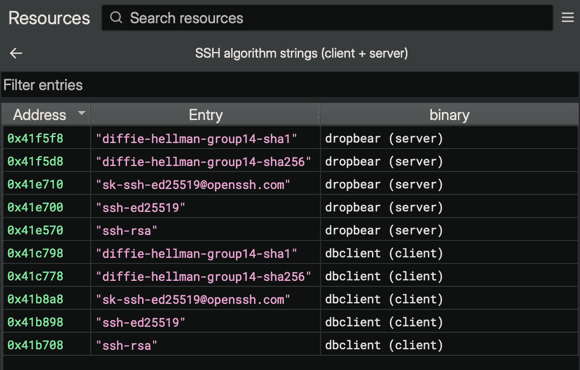
When an index's entries come from more than one binary, the detail table automatically adds a Binary column showing which binary each entry belongs to. You can still attach your own per-entry metadata — any metadata key becomes a column in the detail table. See attaching metadata to entries.
Semantic search uses the cross-binary index. When you use concept("authentication") in a query, Sidekick searches the embedding index for all open views and surfaces the most relevant functions regardless of which binary they are in.
The AI agent has access to all open binaries when processing a request. If you ask "which binary exports a function that calls EVP_EncryptInit?", the agent can query all open binaries to find the answer. When multiple binaries are open, you can mention a specific filename in your message to direct the agent's attention to it.
Opening and closing individual binaries
Binary Ninja projects allow you to open and close individual files independently. Sidekick tracks these lifecycle events:
- When you open a binary, Sidekick registers it with the workspace and its semantic index scope becomes active.
- When you close a binary, its semantic index scope is deactivated. The rest of the workspace data (chat history, indexes, notebook entries, etc.) is retained.
You do not need all project binaries open at once. Sidekick works with whatever subset is currently open, and data accumulated when other binaries were open is preserved in the workspace for future sessions.
Switching between binaries
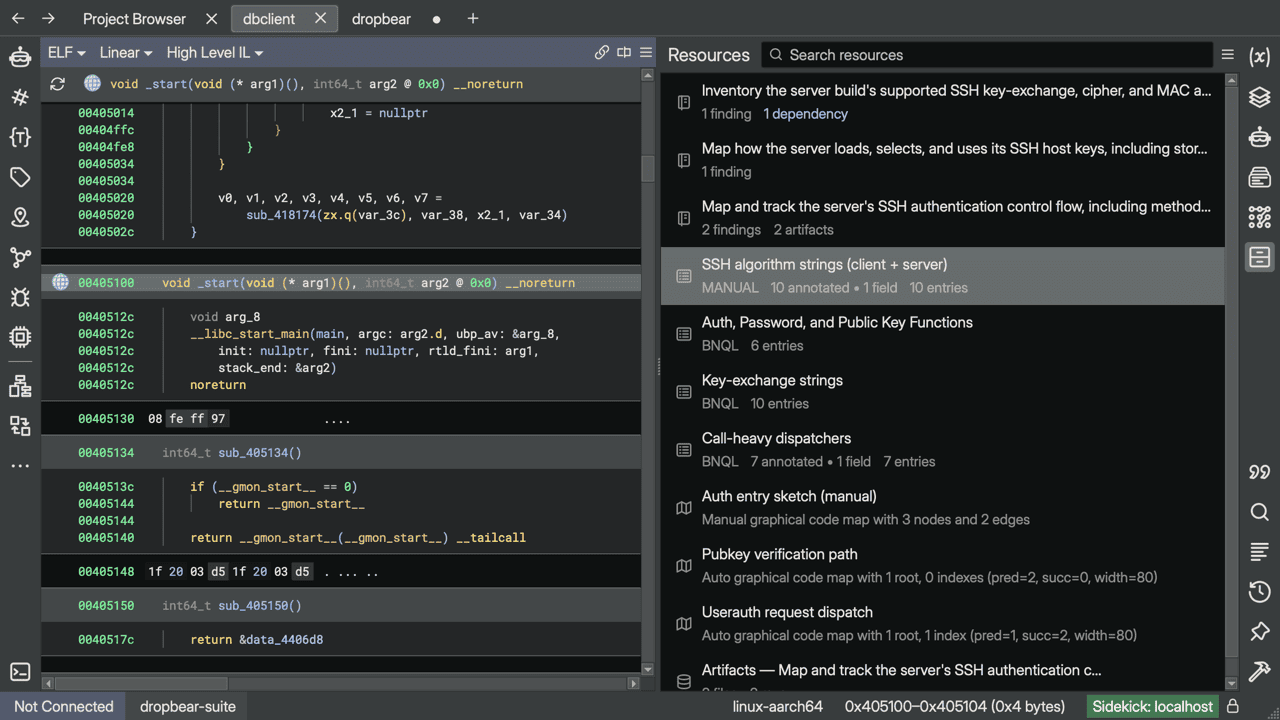
The Sidekick Chat and Resources sidebars maintain a single panel for the entire workspace. Your chat history, notebook entries, indexes, code maps, and repositories remain visible as you switch between binary view tabs.
The Transaction Log sidebar is also workspace-wide: it lists transactions for every binary in the workspace, and when an analysis update modifies more than one binary, its detail view groups the modifications into a section per binary, headed by the binary's name. The list does not change when you switch binary tabs.
Managing workspace data
Open Plugins > Sidekick > Open Sidekick to manage workspace data in the Sidekick tab. A project window lists its project's workspaces; a window outside a project lists workspaces across all projects and standalone files. Use Activity or Effort to include workspaces with no next step.
Right-click a workspace row for these actions:
- Export Workspace… saves its persisted chats, resources, and transaction history
as a
.sidekick-workspace.jsonfile. This works for open and closed workspaces. - Copy Workspace ID helps distinguish copies created by File > Save As.
- Delete Workspace… removes a workspace's stored data. In a project, any workspace that isn't current in a project window and has no running work can be deleted; for a standalone file, close the file first. Deleting a project workspace also removes it from the project's workspace list. If no workspaces remain, Sidekick creates a fresh one the next time the project needs a workspace.
Standalone workspaces have a separate file section: Show File in Finder and Copy File Path, for both raw binaries and saved BNDBs. Windows and Linux name Explorer and File Manager instead of Finder.
Stored workspaces whose file metadata is missing appear under their workspace ID so they can still be exported or deleted.
Warning
Deleting a workspace permanently removes all of its chat history, indexes, and semantic embedding data. This action cannot be undone.
The JSON snapshot retains persisted workspace content, including workspace repository files, for backup, inspection, statistics, and activity timelines. It does not include the source binaries or the Binary Ninja project itself. Importing these JSON files from the ledger is not yet available. To move or share workspace data through a BNDB and import it into another Sidekick installation, use the embedded export/import workflow described in Sharing Analysis Data.
Tips for multi-binary projects
-
Open all related binaries before starting analysis. Sidekick can only query binaries that are currently open. If you want cross-binary search results, open all relevant files before asking Sidekick questions.
-
Use the Notebook to track binary-specific findings. When Sidekick discovers something significant in one binary, you can ask it to add a notebook entry. Because the Notebook is project-scoped, that entry is visible when you later switch to a different binary in the same project.
-
Reference binary names in chat. When your project has multiple binaries, mention the specific binary file you want to analyze in your message. This helps Sidekick direct its queries to the right view.
-
Build per-binary indexes when needed. If you want focused search over a single binary, create a named index and populate it from that binary's functions. You can build separate indexes for each binary and query them independently.
-
Save your project after analysis. Project-backed workspaces use stable IDs, so your chat history and analysis data are reliably associated with the project across sessions.