Getting Started
Welcome to Binary Ninja Sidekick. This tutorial covers installation, configuration, and which features require a service plan. Follow each section in order and you will be ready to analyze binaries by the end.
Accessing the Sidekick Service
All active Binary Ninja license holders receive a Sidekick Free Plan with a limited amount of service usage each month. Install the latest Sidekick plugin and start using it — no paid subscription or credit card is required.
Free Plan data use
Data submitted to the Sidekick service through the Free Plan may be retained and used for continual product improvement and training of our AI/ML models. See Rights in and License to Data and the Data Privacy Policy for details.
For higher usage limits and additional data privacy options, visit pricing to choose a paid plan. You need a Sidekick account to purchase a plan; if you do not have one, you can create one at sidekick.binary.ninja/sign_in.
Installing the Plugin
Launch the Binary Ninja Extension Manager by selecting Plugins > Manage Plugins from the main menu. Search for "Sidekick" and click the Install button.

The plugin has several package dependencies. Installation may take a few minutes — you will see a progress indicator in the Extension Manager while dependencies download. When installation completes, Binary Ninja prompts you to restart. Restart Binary Ninja to activate the plugin.
Supported Python Version
Sidekick officially supports the Python interpreter bundled with Binary Ninja. Other Python versions may work, but are not officially supported.
Updating the Plugin
When a Sidekick update is available, install it from the Extension Manager:
- Extension Manager: Select
Plugins > Manage Plugins, search for "Sidekick", and clickUpdate.
Using a Paid Plan API Key
The Sidekick Free Plan does not require you to configure an API key. If you purchase a paid plan, configure its API key to use the plan's higher limits and data privacy options:
- Copy one of your valid API keys from sidekick.binary.ninja/account#api-keys.
- Open the Configure Sidekick API Key dialog from
Plugins > Sidekick > Configure API Key..., or click the Sidekick status indicator in the status bar and chooseConfigure API Key.... - Paste the key and save.
Note
The Configure API Key dialog saves the key to the hidden Binary Ninja setting sidekick.service.api_key and applies it to the running client immediately. Setting your API key this way does not require restarting Binary Ninja.
Accessing Service Features
Not every Sidekick feature depends on the cloud service. The table below shows which features require service access and which run entirely on your machine.
| Feature | Requires service? |
|---|---|
| Chat | Yes — queries and automatic thread titling require service access |
| Welcome to Sidekick! onboarding chat | Partially — opening the onboarding thread does not require service access, but live guided demonstrations in Chat do. If service is unavailable, Sidekick falls back to a local setup message. |
| Suggest Repairs / Suggest Types / Suggest Imported Types / Suggest Names / Suggest Comments | Yes — each operation sends context to the service and applies the results |
| Semantic Indexing | No — all embedding and vector storage is local via a bundled sidecar process. The embedding model is downloaded once from HuggingFace on first use. |
| Notebook | No — you can create and edit entries manually at any time without service access |
| Indexes | No — manual index creation and BNQL queries run locally |
| BNQL | No — queries execute locally against the binary database |
| Code Maps | No — graph generation runs locally |
| Transaction Log | No — local analysis history and audit trail |
| Sidekick API | Depends — default automation models use the Sidekick service, but you can configure local models or your own API keys for fully offline use. See Configuring completion pools. |
Tip
You can open a binary and explore the Notebook, Indexes, BNQL, Code Maps, and Transaction Log without a service plan. These features are useful for organizing your analysis even when working offline.
Configuring Service Connection
Use Plugins > Sidekick > Toggle Online / Offline to switch service access from the menu bar. The Sidekick status indicator in the Binary Ninja status bar shows whether Sidekick is connected, offline, disconnected, or missing an API key. Click the indicator to see the plugin version, the current host, and whether the API key is Configured (a key is saved), Automatic (no key saved; the Free Plan connects with your Binary Ninja license), or Missing (no key and no license available). The menu also shows your plan name once it is known, the usage remaining while online, and the last error, if any. When less than 10% of your usage remains, the status text also shows N% left. From the menu you can choose actions such as Go Online, Go Offline, Retry Connection, or Configure API Key....
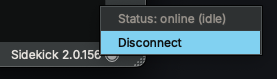
By default, Sidekick connects on startup. To start in offline mode, uncheck sidekick.service.start_online in Binary Ninja settings.
Out-of-Credits Notifications
If the service rejects a request because your plan has insufficient credits, Sidekick can show a popup at startup or while you use service features. Notifications are enabled by default: the first error shows a popup, and later errors show one only after more than 30 days have passed since the last notification.
To stop these popups, select Don't show this again in the dialog. To re-enable them, open
Binary Ninja's Settings, search for sidekick.notifications.insufficient_credits, and check
Out-of-Credits Notifications. The 30-day interval still applies. Your preference and the
notification timing persist across restarts; errors remain in the log and Sidekick stays online.
See Notification settings for details.
Orienting Yourself in the UI
Open a binary to see how Sidekick fits into Binary Ninja.
The Sidekick tab is the central home for Chat, Memory (the session briefing and findings), Tasks, Changes, and Artifacts.
Open it from Plugins > Sidekick > Open Sidekick. There is one Sidekick tab per window;
its default page is the workspace ledger, a searchable list of every workspace in
scope that gives you access to past work. The Workspace control in the status bar
shows which investigation is current. Selecting a standalone binary makes its
workspace current; selecting a project binary keeps the project's current workspace.
Each workspace has its own lead agent, the assistant you talk to about anything in that workspace from its Chat tab in the Sidekick tab. Ask it a question and it answers directly, delegating to specialist agents when useful. Code remains in Binary Ninja's ordinary binary tabs, and code references open the relevant tab at the target. See Working in the Sidekick Tab.
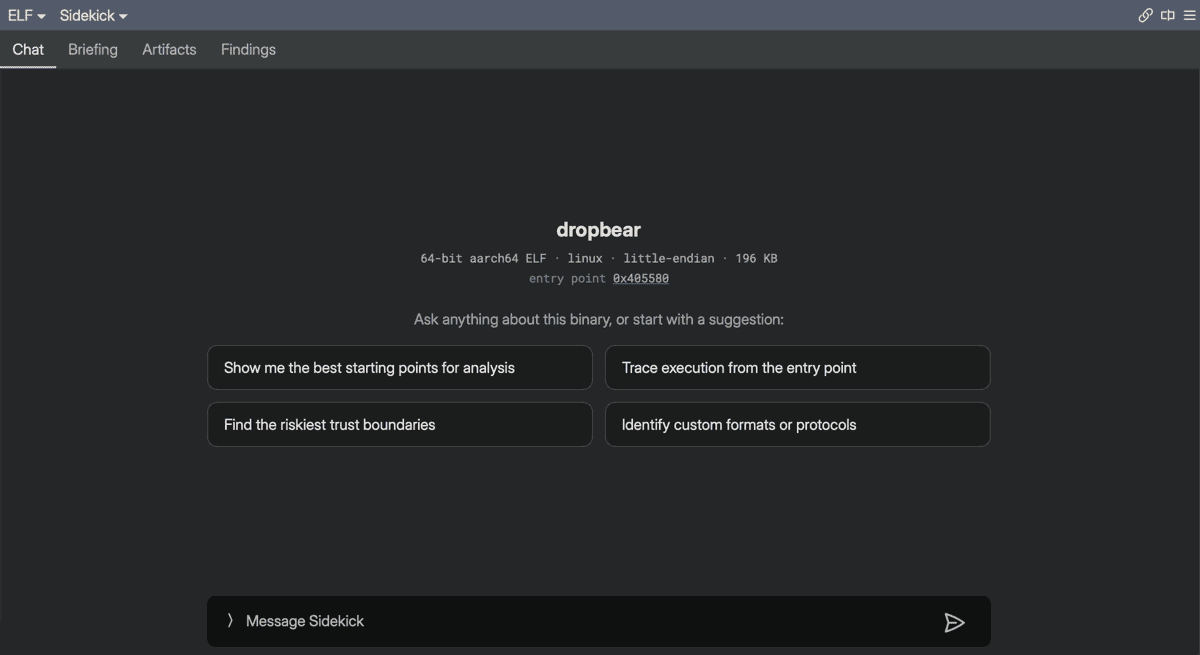
Four Sidekick sidebars are also available from the sidebar panel:
- Sidekick Chat — the thread-centric chat surface. Most everyday analysis happens in the Sidekick tab above; open the Chats sidebar when you want to manage several conversations yourself, or to watch the specialist agents a lead agent spawns, each running as its own thread. See Analyzing Binaries with Chat.
- Sidekick Resources — a searchable browse list over notebook entries, indexes, code maps, and workspace repositories. See Browsing Workspace Resources.
- Sidekick Transaction Log — the history of every change Sidekick has applied to the binary. See Reviewing Changes in the Transaction Log.
- Sidekick Library — reusable scripts, agents, and skills. See Managing Scripts, Agents, and Skills in the Library.
Starting with the Welcome Chat
Once you have a binary open, choose Plugins > Sidekick > Welcome to Sidekick! to open the guided
onboarding chat for the current workspace. Sidekick does not launch this chat automatically.
The Welcome chat is organized around the three core activities Sidekick helps with:
- Search — find the code relevant to your question
- Simplify — make code more readable with names, types, comments, and analysis repair
- Surface — extract useful artifacts such as findings, summaries, and visualizations
For each activity, the onboarding chat can either:
- Show me — demonstrate the workflow on your current binary
- Teach me — explain the relevant UI surfaces and controls
If Sidekick is not online yet, the Welcome chat still opens and gives you local setup guidance so you can finish connecting and continue later.
Next Steps
With installation complete, open a binary and start talking to Sidekick in the center-pane view.
Open Plugins > Sidekick > Welcome to Sidekick! when you want a guided tour, or explore the
following pages to learn how to use Sidekick effectively:
- Working in the Sidekick Tab — start here: central command for your workspaces, where you talk to each workspace's lead agent and do most of your analysis
- How Sidekick Analyzes Binaries — understand how Sidekick uses tools and agents to answer your questions
- Understanding Tool Permissions — control what Sidekick is allowed to modify in your binary
- Analyzing Binaries with Chat — the thread-centric Chats sidebar, @-mentions, and thread management