Reviewing Changes in the Transaction Log
The Transaction Log is a persistent history of every change Sidekick has applied to or attempted on the binary database. It captures modifications made through Chat operations and through suggestion menu items (Suggest Repairs, Suggest Types, Suggest Imported Types, Suggest Names, Suggest Comments), including database edits, index changes, code map changes, and mapped-view creation. Each record in the log is a transaction — a unit of work that commits or fails. Older logs may also contain rejected transactions; those historical records remain viewable.
Use the Transaction Log when you want to audit what Sidekick changed and why. It lets you inspect the exact properties and values that were modified, navigate to affected addresses, and investigate why a transaction failed.
Opening the Transaction Log sidebar
The Transaction Log is available as a sidebar panel in Binary Ninja.
- Open the right sidebar in Binary Ninja.
- Click the Sidekick Transaction Log tab.
The same history also appears in the Changes tab of a workspace's panel in the Sidekick tab, including for saved workspaces you haven't opened.
Transactions that Chat or a suggestion produces also appear in the conversation as compact links led by a tag such as EDIT, INDEX, CODE MAP, or MAPPED VIEW. Click one to open the Transaction Log (or the workspace Changes tab) with that transaction selected.
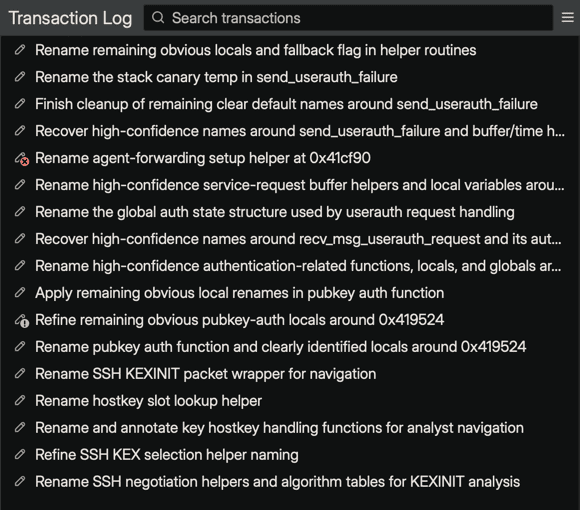
The sidebar shows the most recent transactions at the top, with the oldest at the bottom. It loads 100 transactions at a time; scroll to the bottom of the list to load older entries automatically.
Note
The Transaction Log is per workspace. A standalone file has its own log. Files in the same Binary Ninja project share the log of the window's current workspace, and an update that touched several binaries shows one section per binary. The sidebar also works from the Project Browser when no file is open.
Understanding the transaction list
Each row in the list represents one transaction. Every row shows:
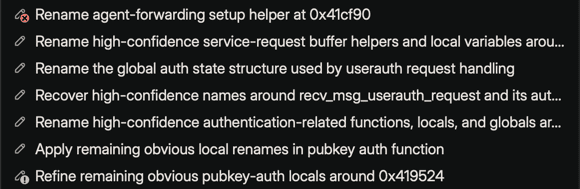
- Type glyph and state badge — a glyph indicating the transaction type, with a badge overlaid for exceptional outcomes:
- no badge — the transaction was committed successfully (the common case)
- red
✗— a historical transaction was rejected before application - orange
!— the transaction failed during application
- Description — a short human-readable summary of what the transaction did, such as
Updated index 'functions'or a description from the chat operation
Hover over a row to see a card with the transaction type, when it was recorded (for example, 3m ago), its description, a breakdown of what it changed (such as 2 renames · 1 comment), the outcome with the short transaction ID, and, for failed transactions, the error message.
Filtering the list
By default, the list shows all terminal states — committed, rejected, and failed. To change what is displayed:
- Click the hamburger menu in the sidebar header.
- Expand Filter by State.
- Toggle any combination of Committed, Rejected, and Failed.
- To restore the default view, select Show All from the same menu.
At least one state always stays selected.
Viewing transaction details
Select a transaction to see its detail view. When the sidebar is wide, the detail appears beside or below the list. When it is narrow, double-click the transaction (or right-click and choose Show Details) to open the detail view, and use the Back arrow to return to the list. Right-click and choose Inspect... to open the details in a separate window. Layout in the hamburger menu controls single-pane versus split view and side-by-side versus stacked.
The detail view header shows:
- The transaction description as a headline
- The state and local timestamp
- For Analysis Updates, the number of changed objects and properties, plus counts of objects created or removed, for example
3 objects · 5 properties · 1 created
Expand Details to see the transaction type and full transaction ID, which you can select and copy, and the Revert action when available.
For failed transactions, the detail view also displays an error message in red explaining why the transaction could not be applied.
Transaction types
The detail view content varies by transaction type.
Analysis Update
An Analysis Update is produced when Chat or a suggestion operation modifies the binary database — for example, renaming a function, applying a type, adding a comment, or repairing local analysis state.
The detail view groups changes by object in a table with Property, Before, and After columns. Updates involving multiple binaries also show a section heading for each binary.
Each object has a header such as Function › 0x418754 or Type › DeviceClock. Below it, each row compares one changed property:
- Existing values appear side by side; long values wrap within their columns.
- Added values have a green background. Removed values have a red background.
- Object creation and removal appear in a separate Object row. A created object shows Not present in Before and
Createdin After; a removed object showsRemovedin Before and Not present in After. - For other properties, empty values display Not set. If an older transaction did not capture the original value, Before displays Prior value unavailable.
- A function's generated name, such as
sub_404610, is treated as Not set, so assigning a meaningful name appears as an added value. - Repeated changes to a property show its original and final values. Properties with no net change are omitted.
To navigate to an affected address, double-click the object's header bar. The current object's header stays visible while you scroll through its properties. Values can be selected and copied as plain text.
Index Update
An Index Update records changes to a Sidekick analysis index — for example, adding, updating, or removing entries.
The detail view shows:
- Operation Details — the operation (
ADD,UPSERT,UPDATE, orREMOVE) and either theTarget Index IDor, for a newly created index, itsNew Index Name - Entries — a table of the affected entries, titled
Entries,Entries to Remove, orEntries to Updatewith a count (not shown if the entries are unavailable) - Attribute Updates — for
UPDATEoperations, the attribute values that were changed
Code Map Update
A Code Map Update records a change to a code map, such as setting its mode or adding nodes and edges. The detail view summarizes the change rather than drawing the graph:
- Code Map — the map name and the mode the update sets, or
unchanged - Auto configuration — when present, the number of roots, predecessor and successor hops, node width, and number of index resources
- Manual graph — when present, the node and edge counts
Mapped View Creation
A Mapped View Creation is recorded when Sidekick creates a mapped view over a raw file. The detail view shows:
- Views — the
Source(the raw file) and theMapped view, orNot createdif it was not created - Mapping — the platform, architecture, base address, and entry point (
Defaultif none was set) - Segments — one line per segment with its address range,
rwxpermissions, code/data contents, and backing file bytes. With no explicit segments it showsDefault: one r-x segment covering the whole file.
Searching transactions
Type in the search box at the top of the sidebar to search across all transactions. Sidekick searches transaction types, IDs, descriptions, and serialized content. The list updates as you type.
Search scans up to 1,000 recent transactions and respects the current Filter by State selection; transactions in a hidden state do not appear in results. Clear the search box to return to the full list.
Undoing changes
For a committed Analysis Update that recorded its previous values, expand Details and choose Revert. A confirmation tells you how many changes will be undone and how many will be skipped because no prior value was recorded. Confirming submits a new transaction described as Revert: <original description>, which gets its own log entry. Changes made to the same items since are not overwritten; those parts of the revert are declined. Revert is not offered for index, code map, or mapped-view transactions, or when viewing a saved workspace.
Separately, where supported, you can use Binary Ninja's standard undo (Ctrl+Z / Cmd+Z). Each Analysis Update is applied as a single Binary Ninja undo action per binary, whether it came from Chat or a suggestion operation, so one undo step reverts all of that transaction's changes to that binary.
Note
Historical rejected transactions were not applied. A failed operation may have encountered an error after starting; inspect its details and the current database rather than assuming nothing changed. Revert is offered only for committed, reversible transactions.
Deleting history items
You can remove individual transactions from the log when you no longer want to keep them in the local history:
- Right-click a transaction in the list and choose Delete Transaction.
- Or select a transaction and choose Delete Transaction from the hamburger menu.
Deleting a transaction removes only the history entry from the Transaction Log. It does not undo any committed database changes.
Real-time updates
The Transaction Log sidebar updates automatically as new transactions complete. When a Chat operation or suggestion operation finishes, the new transaction appears at the top of the list without requiring a manual refresh.
Related pages
- Editing Binaries with Suggestions — how suggestion operations produce transactions
- Analyzing Binaries with Chat — how chat operations produce transactions
- Building and Using Indexes — how index changes appear in the log