Recording Analysis in the Notebook
The Notebook is a persistent workspace where you record findings, track analysis goals, and build a structured knowledge base about the binary you are examining. Notebook entries are accessible from the Sidekick Resources sidebar and persist across sessions in Sidekick's workspace database, not the Binary Ninja database (see Persistence).
The Notebook is organized around entries. Each entry represents a distinct analysis goal or line of inquiry. Within an entry you can record:
- TaskItems — specific steps you plan to take or are tracking
- Outcomes — findings and artifacts you have discovered while pursuing the entry
- Blockers — requests for outside input that Sidekick cannot resolve itself
Entries can also carry analysis_context: structured intermediate analysis state used by Sidekick tools, agents, and scripts. It is separate from outcomes and blockers, and it is not currently shown in the Resources UI.
Sidekick reads the Notebook as context when responding to your messages in Chat, and automatically updates its understanding of your analysis as you record findings and complete entries.
Opening the Notebook
The Notebook lives in Sidekick Resources. See Browsing Workspace Resources for an overview of the sidebar's browse list and detail layout, search, and shared context-menu actions.
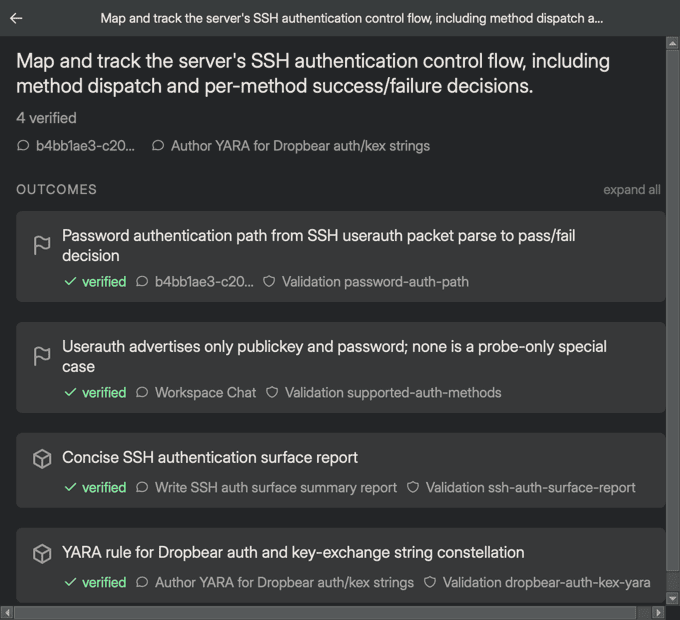
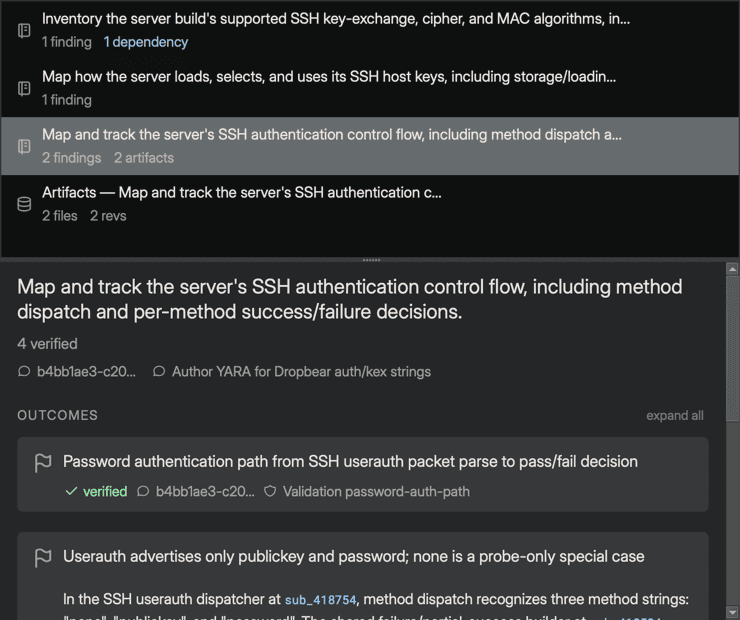
In the browse list, each notebook row shows the entry description and counts of its findings, artifacts, open blockers, and dependencies. Selecting a notebook entry shows its full detail in Resources — header, SUMMARY (for closed entries), BLOCKERS and TASKS (only when present), OUTCOMES, and references.
Code references inside the entry detail (addresses and symbols in outcome prose, and the REFERENCES chips) navigate Binary Ninja to the referenced code location.
Session Briefing
The Session Briefing is Sidekick's rolling case file for the current workspace. Open it from the Memory tab of a workspace in the Sidekick tab: choose Plugins > Sidekick > Open Sidekick, select the workspace, then click Memory.
The briefing view is organized into up to seven sections; empty sections are hidden:
- Goal — the durable analysis mission
- Status — how complete the goal is in plain language
- Needs Your Input — open blockers, stating what Sidekick needs from you
- Key Findings — the durable conclusions the next analyst must know
- Current Focus — active work or current attention, when any
- Open Questions — critical unresolved issues, when any
- Wayfinding — binary/system landmarks, functions, flows, sinks, and data sources
Source links appear inline on the findings and wayfinding bullets they support when the briefing actor can cite notebook entries or outcomes.
Creating Entries
Notebook entries are created by Sidekick as it works. Ask in Chat (for example, "Track the authentication flow as a notebook entry" or "Add a task to check all callers of validate_token") and Sidekick records the entry, tasks, and outcomes with provenance. The Resources sidebar has no input box for creating entries.
Managing Entries
Viewing an entry
Select an entry in the browse list to show its detail in Resources. In a narrow sidebar, double-click the entry, press Enter, or choose Show Details from its context menu. The detail shows:
- The entry description (double-click to edit inline)
- A count line such as
4 verified or 2 verified · 1 draft (no outcomes when the entry has none)
- Entry provenance edge lines — a chat icon links the thread that created the entry and, if a different thread touched it later, a second chat icon links the most recent one (hover an icon for its meaning)
- A
depends on edge line (link icon) linking the entries this one depends on (shown only when dependencies exist)
- A SUMMARY section (for closed entries that have a summary), followed by BLOCKERS and TASKS (each only when present) and OUTCOMES
Renaming an entry
Double-click the entry description in the detail view to edit it inline; press Enter or click away to save. Notebook entries do not have a Rename item in the right-click menu.
Searching entries
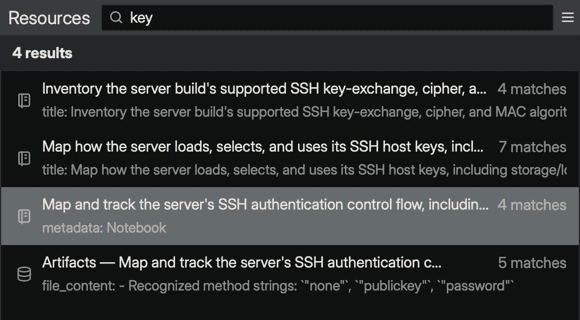
Type in the search box at the top of the browse list. Search matches against the entry description, status, relevant domains, task descriptions, and outcome titles and descriptions. A deeper content search also looks inside the entry's text.
Closing an entry
Sidekick closes an entry when it finishes a line of work, recording a resolution (Completed, Partially completed, Infeasible, or Deferred) and an optional summary. The summary appears in the SUMMARY section of the entry detail. There is no right-click action to complete, abandon, or reactivate an entry; ask Chat to do so.
Deleting an entry
Right-click an entry and choose Delete; Sidekick asks "Delete '
'?" before removing it. Deletion is permanent.</p>
<h2 id="working-with-tasks">Working with Tasks<a class="headerlink" href="#working-with-tasks" title="Permanent link">¶</a></h2>
<p>TaskItems are specific steps tracked within an entry. They appear in the <strong>Tasks</strong> section of the detail view; entries without tasks omit the section.</p>
<h3 id="adding-a-task">Adding a task<a class="headerlink" href="#adding-a-task" title="Permanent link">¶</a></h3>
<p>Ask in Chat (for example, "Add a task to check all callers of <code>validate_token</code>") and Sidekick adds it as a task on the entry. Adding a task is how you steer the work: describe the result you want and a thread that picks it up will record the outcome with full provenance.</p>
<h3 id="cycling-task-status">Cycling task status<a class="headerlink" href="#cycling-task-status" title="Permanent link">¶</a></h3>
<p>Each task has a clickable status icon. Click it to cycle the task through <code>pending</code>, <code>in_progress</code>, and <code>completed</code>, then back to <code>pending</code>.</p>
<table>
<thead>
<tr>
<th>Icon</th>
<th>Status</th>
</tr>
</thead>
<tbody>
<tr>
<td>Gray square</td>
<td><code>pending</code></td>
</tr>
<tr>
<td>Yellow dotted square</td>
<td><code>in_progress</code></td>
</tr>
<tr>
<td>Green checked square</td>
<td><code>completed</code></td>
</tr>
<tr>
<td>Red crossed square</td>
<td><code>blocked</code></td>
</tr>
</tbody>
</table>
<p>A <code>blocked</code> status is set by Sidekick, not by clicking. Clicking a <code>blocked</code> task returns it to <code>pending</code>. Completed and blocked tasks are dimmed. When all of an entry's tasks are completed, they fold into a single "N completed tasks" row; click it to expand.</p>
<h3 id="removing-a-task">Removing a task<a class="headerlink" href="#removing-a-task" title="Permanent link">¶</a></h3>
<p>Hover over a task, click the trash button on the right, and click <strong>Remove Task</strong> in the confirmation.</p>
<h2 id="working-with-outcomes">Working with Outcomes<a class="headerlink" href="#working-with-outcomes" title="Permanent link">¶</a></h2>
<p>Outcomes capture knowledge discovered while pursuing an entry. Each outcome has a kind, a title, an optional description, a confidence score, a status lifecycle, and thread-level provenance for creation and validation.</p>
<h3 id="outcome-kinds">Outcome kinds<a class="headerlink" href="#outcome-kinds" title="Permanent link">¶</a></h3>
<table>
<thead>
<tr>
<th>Kind</th>
<th>Purpose</th>
</tr>
</thead>
<tbody>
<tr>
<td><code>finding</code></td>
<td>A reusable, anchored fact about the binary (for example, "Function at <code>0x401000</code> uses XOR encryption")</td>
</tr>
<tr>
<td><code>artifact</code></td>
<td>A concrete deliverable produced by the work — YARA signature, report, proof-of-concept, generated script</td>
</tr>
</tbody>
</table>
<h3 id="blockers">Blockers<a class="headerlink" href="#blockers" title="Permanent link">¶</a></h3>
<p>A blocker records something Sidekick needs from you before it can continue, such as a missing file or a decision. Blockers are separate from outcomes and appear in their own <strong>BLOCKERS</strong> section above TASKS. Open blockers show a <code>Needs: ...</code> line; resolved or withdrawn blockers show <code>Resolved: ...</code> or <code>Withdrawn: ...</code> with the recorded resolution. Sidekick creates and resolves blockers; answer them in Chat.</p>
<h3 id="how-outcomes-are-created">How outcomes are created<a class="headerlink" href="#how-outcomes-are-created" title="Permanent link">¶</a></h3>
<p>Outcomes are produced by Sidekick threads, not entered by hand — each one carries provenance (the thread that created it, the threads that validated or contested it) and a confidence score that only make sense for agent-produced claims. To steer the work toward a result you want, add a <strong>task</strong> describing the desired outcome (for example, "determine whether the blob at <code>0xa640c</code> is encrypted"); the thread that completes it records the resulting outcome with full provenance.</p>
<h3 id="outcome-status-lifecycle">Outcome status lifecycle<a class="headerlink" href="#outcome-status-lifecycle" title="Permanent link">¶</a></h3>
<p>Outcomes move through a status lifecycle:</p>
<div class="language-text highlight"><pre><span></span><code><span id="__span-0-1"><a id="__codelineno-0-1" name="__codelineno-0-1" href="#__codelineno-0-1"></a>draft <-> verified
</span><span id="__span-0-2"><a id="__codelineno-0-2" name="__codelineno-0-2" href="#__codelineno-0-2"></a>draft, verified -> rejected
</span></code></pre></div>
<ul>
<li><code>draft</code> — initial state on creation</li>
<li><code>verified</code> — confirmed and in use; can be moved back to <code>draft</code> if the outcome needs to be reopened for review</li>
<li><code>rejected</code> — determined to be invalid or withdrawn (requires a reason); this is final, and a rejected outcome cannot be moved back to <code>draft</code> or <code>verified</code></li>
</ul>
<p>Rejecting an outcome does not automatically reject outcomes that link to it. When the <strong>Notebook Validation</strong> actor rejects an outcome, it also rejects the outcomes in the same entry that link to it.</p>
<p>Outcome status transitions are made automatically by Sidekick, mainly by the <strong>Notebook Validation</strong> actor. Each outcome is a card. The collapsed card shows a kind icon (flag for findings, box for artifacts), the title, and a status line — ✓ verified, △ draft, or × rejected — followed by icons for the chat that created the outcome and its validation threads (hover an icon for its meaning). Click the title to expand the card and see its description, any artifact file details, a <code>contested by</code> line for rejected outcomes, and <strong>REFERENCES</strong> chips. Rejected titles are struck through.</p>
<h3 id="removing-an-outcome">Removing an outcome<a class="headerlink" href="#removing-an-outcome" title="Permanent link">¶</a></h3>
<p>Hover over an outcome card, click the <strong>×</strong> at its top right, and click <strong>Remove Outcome</strong> in the confirmation.</p>
<h3 id="outcome-provenance">Outcome provenance<a class="headerlink" href="#outcome-provenance" title="Permanent link">¶</a></h3>
<p>Outcomes track thread-level provenance:</p>
<ul>
<li>The Chat thread that created the outcome, when known.</li>
<li>The validation threads that have checked that specific outcome.</li>
<li>The threads that rejected the outcome (contested it), when known.</li>
</ul>
<p>These appear on the card's status line as small icons: a chat icon for the thread that created the outcome and a shield icon for the validating threads (hover for the meaning). A rejected outcome shows a red <code>✗ contested by</code> line with the contesting thread and the rejection rationale in the expanded card; if a previously contested outcome is later re-verified, its contested line remains as a struck-through audit trail. Referenced functions and types appear as chips under a <strong>REFERENCES (N)</strong> label. The <code>expand all</code> / <code>collapse all</code> toggle in the <strong>OUTCOMES</strong> header expands or collapses every card.</p>
<p><img alt="An expanded outcome card showing its kind icon, title, anchored description with inline code references, a verified provenance footer, and the REFERENCES chip group" src="../images/notebook-outcome-expanded.png" /></p>
<h2 id="analysis-context">Analysis Context<a class="headerlink" href="#analysis-context" title="Permanent link">¶</a></h2>
<p>Notebook entries may also store <code>analysis_context</code>: durable, machine-readable intermediate state such as scope blocks, candidate lists, partition rules, or coverage manifests. This data is meant for tooling and automation rather than for direct human browsing in the sidebar.</p>
<p>Use <code>analysis_context</code> when Sidekick or a script needs to carry structured working state forward across turns or sessions without pretending that the state is already a <code>finding</code>, <code>artifact</code>, or <code>blocker</code>.</p>
<p><code>analysis_context</code> is available through the scripting and tool surfaces, but it is not currently rendered in the Notebook detail surface.</p>
<h2 id="dependencies-between-entries">Dependencies Between Entries<a class="headerlink" href="#dependencies-between-entries" title="Permanent link">¶</a></h2>
<p>Entries can reference other entries they depend on. Dependencies are informational — they help you track relationships between analysis goals but are not enforced. Use dependencies when one entry's outcome is a prerequisite for another — for example, if "Investigate loader" must complete before "Identify entry point" can begin.</p>
<p>Dependencies appear as a <code>depends on</code> edge line in the detail view header, right below the entry's provenance line. Each linked entry is clickable and opens that entry's detail view. The line appears only when the entry has dependencies.</p>
<h3 id="adding-a-dependency">Adding a dependency<a class="headerlink" href="#adding-a-dependency" title="Permanent link">¶</a></h3>
<p>When an entry already has dependencies, click the <strong>+</strong> at the end of the <code>depends on</code> line; the dialog shows all other entries — select one and click <strong>Add</strong>. The first dependency on an entry is normally established by Sidekick while it works; ask for it in Chat.</p>
<h3 id="removing-a-dependency">Removing a dependency<a class="headerlink" href="#removing-a-dependency" title="Permanent link">¶</a></h3>
<p>Click the <strong>×</strong> button next to the dependency link on the <code>depends on</code> line.</p>
<h2 id="navigating-to-threads">Navigating to Threads<a class="headerlink" href="#navigating-to-threads" title="Permanent link">¶</a></h2>
<p>Every entry tracks which Chat threads have operated on it. The chat icons in the entry header link the creating thread and the most recent one, and the thread links on each outcome's provenance (created in, validated by, <code>✗ contested by</code>) navigate to those conversations in the <strong>Sidekick Chat</strong> sidebar.</p>
<p>This lets you trace how Sidekick's analysis in Chat contributed to outcomes recorded in the Notebook.</p>
<h2 id="how-sidekick-uses-the-notebook">How Sidekick Uses the Notebook<a class="headerlink" href="#how-sidekick-uses-the-notebook" title="Permanent link">¶</a></h2>
<p>Sidekick integrates with the Notebook in several automated ways:</p>
<ul>
<li><strong>Context for Chat</strong> — the Chat Assistant reads active notebook entries and their outcomes to inform its responses. You do not need to repeat findings you have already recorded.</li>
<li><strong>Structured working state</strong> — Sidekick tools and scripts can read an entry's <code>analysis_context</code> to resume intermediate state such as scope and candidate sets without recomputing it.</li>
<li><strong>Outcome validation</strong> — when a new <code>finding</code> or <code>artifact</code> outcome is added as a draft, the <strong>Notebook Validation</strong> actor checks it against its evidence. It promotes the outcome to verified, rejects it with a reason, or leaves it as a draft when the evidence is insufficient to decide. When it rejects an outcome, it also rejects linked outcomes and re-checks dependent entries. The validating threads appear on the outcome card.</li>
<li><strong>Session briefing synthesis</strong> — the <strong>Analysis Briefings</strong> actor continuously updates a session-level briefing from notebook activity and recent chats. You can review that briefing on the <strong>Memory</strong> tab of a workspace in the Sidekick tab; the <strong>Memory</strong> tab is read-only and the briefing is rewritten automatically as your notebook and chats change. To influence it, record findings, tasks, or blockers in the Notebook through Chat.</li>
</ul>
<div class="admonition note">
<p class="admonition-title">Note</p>
<p>Background synthesis and validation only run when the Sidekick service is available. The notebook itself is always accessible and fully functional offline.</p>
</div>
<h2 id="persistence">Persistence<a class="headerlink" href="#persistence" title="Permanent link">¶</a></h2>
<p>The Notebook is saved in Sidekick's workspace database (<code>workspaces.db</code>) whenever a change is made — not in the Binary Ninja <code>.bndb</code> file. Entries, tasks, outcomes, and <code>analysis_context</code> are all preserved across Binary Ninja sessions. Opening any binary that belongs to the same workspace restores your full notebook state.</p>
<p>For standalone files that are not part of a Binary Ninja project, each file gets its own workspace, so the notebook is scoped to that file.</p>
<h2 id="notebook-in-the-sidekick-tab">Notebook in the Sidekick Tab<a class="headerlink" href="#notebook-in-the-sidekick-tab" title="Permanent link">¶</a></h2>
<p>The <strong>Tasks</strong> tab of a workspace in the Sidekick tab groups your notebook entries as investigations: <strong>Blocked</strong> (with what Sidekick needs from you), <strong>In progress</strong>, <strong>Not started</strong>, and <strong>Closed</strong> (collapsed by default). Each shows agent time and a dot per task (a done/total count when there are many tasks); the full entry is in the Resources sidebar. The <strong>Artifacts</strong> tab shows artifact outcomes; findings are listed below the session briefing on the <strong>Memory</strong> tab.</p>
<h2 id="tips">Tips<a class="headerlink" href="#tips" title="Permanent link">¶</a></h2>
<ul>
<li>Tell Chat your analysis intent before asking it to investigate; Sidekick records it as an entry. This gives the Chat Assistant explicit context about what you are trying to accomplish.</li>
<li>Use <code>finding</code> outcomes for reusable, anchored facts you can point future work at. Use <code>artifact</code> outcomes for concrete deliverables (YARA signatures, reports, PoCs). When Sidekick is stuck on something only you can supply, it records a blocker; answer it in Chat.</li>
<li>When a line of investigation is finished, ask Chat to close the entry with an appropriate resolution. Closed entries remain accessible and their outcomes continue to inform Chat, but they no longer appear as active work.</li>
<li>To focus Chat on a specific entry, mention it in your message or paste its link.</li>
</ul>
</article>
</div>
<script>var target=document.getElementById(location.hash.slice(1));target&&target.name&&(target.checked=target.name.startsWith("__tabbed_"))</script>
</div>
</main>
<footer class="md-footer">
<div class="md-footer-meta md-typeset">
<div class="md-footer-meta__inner md-grid">
<div class="md-copyright">
<div class="md-copyright__highlight">
© Copyright 2015-2026, Vector 35 Inc
</div>
Made with
<a href="https://squidfunk.github.io/mkdocs-material/" target="_blank" rel="noopener">
Material for MkDocs
</a>
</div>
</div>
</div>
</footer>
</div>
<div class="md-dialog" data-md-component="dialog">
<div class="md-dialog__inner md-typeset"></div>
</div>
<script id="__config" type="application/json">{"annotate": null, "base": "..", "features": [], "search": "../assets/javascripts/workers/search.2c215733.min.js", "tags": null, "translations": {"clipboard.copied": "Copied to clipboard", "clipboard.copy": "Copy to clipboard", "search.result.more.one": "1 more on this page", "search.result.more.other": "# more on this page", "search.result.none": "No matching documents", "search.result.one": "1 matching document", "search.result.other": "# matching documents", "search.result.placeholder": "Type to start searching", "search.result.term.missing": "Missing", "select.version": "Select version"}, "version": null}</script>
<script src="../assets/javascripts/bundle.79ae519e.min.js"></script>
</body>
</html>