Building and Using Indexes
Indexes are named collections of binary locations — functions, data variables, strings, or any other addressable object — that you want to track as a group. They give you a persistent, filterable, and navigable list of points of interest that you can build by querying the binary, curating manually, or letting Sidekick populate automatically during analysis.
Use indexes to:
- Track candidate functions for deeper review (e.g., all callers of
malloc). - Collect functions that Sidekick should analyze in a batch.
- Record the results of an automated analysis run with per-entry metadata.
- Build a curated list of interesting locations across multiple binaries in a project.
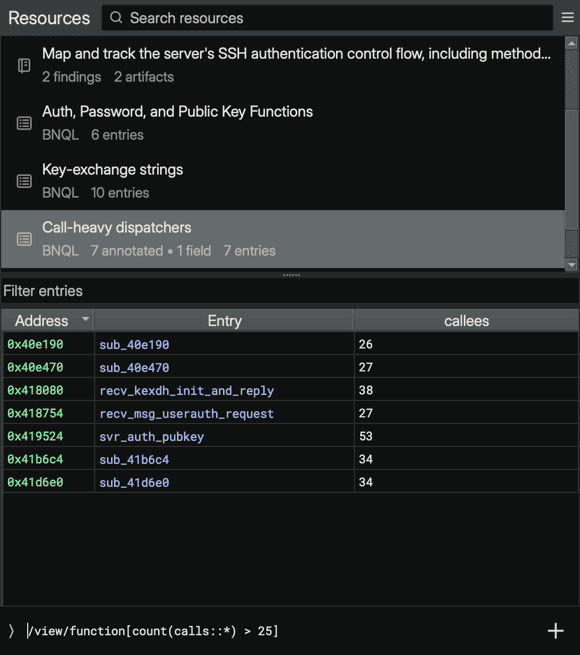
Indexes in Resources
Open the Sidekick Resources sidebar and select an index to see its entries in a sortable, filterable table in the detail view. For an overview of the sidebar's browse list and detail layout, search, and shared context-menu actions, see Browsing Workspace Resources.
When an index is selected, the detail view shows a Query Editor. Its behavior changes depending on context:
- When a BNQL index is selected, the query editor shows the current query. Editing it and pressing Enter re-runs the query and refreshes the index.
- When a manual index is selected, submitting a query adds the query results to the existing entries without replacing them.
![The index detail with the Query Editor below the entry table, containing the BNQL query /view/function[@name ~= r"auth|passwd|pubkey"]](../images/index-query-editor.png)
Index Types
Every index has a type that controls how it is populated and whether entries can be refreshed.
| Type | How it is populated | Refreshable | User curation |
|---|---|---|---|
| BNQL | A single BNQL query | Yes — re-runs the query | No |
| Script | A script execution | Not from the Sidekick UI (there is no Refresh action for Script indexes) | No |
| Manual | Any combination of queries and manual additions | No | Yes |
Sidekick-driven analysis creates manual indexes by default. When you choose New Index, Sidekick creates a BNQL index.
You can convert a BNQL or Script index to a Manual index at any time (see Converting an index to manual).
Note
Script indexes cannot be created from the UI. They are created programmatically — either via the Sidekick Python API in a Library script, or by Sidekick agents that run scripts as part of automated analysis. Like a BNQL index, a Script index does not allow manual entry curation, but the Sidekick UI has no action to refresh it.
Creating an Index
From a BNQL query
- Open Sidekick Resources.
- Open the hamburger menu (the three-line Menu button in the sidebar header) and choose New Index. An empty BNQL index is created and selected, and the Query Editor is focused.
- Enter a BNQL query (e.g.,
callers("malloc")) in the Query Editor and press Enter.
Sidekick runs the query in the background and fills the index with the results. The index is given a generated name that you can change at any time.
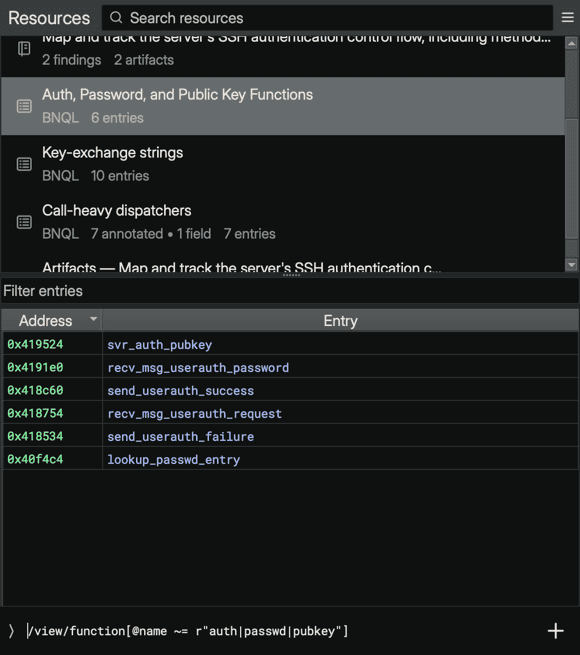
To make the new index manually editable, convert it after creation using Convert to Manual Index in its context or hamburger menu.
Managing Indexes
Renaming an index
Right-click the index in the browse list and select Rename (or select it and choose Rename Resource from the hamburger menu), type the new name inline, then press Enter to confirm.
Deleting an index
Right-click the index in the browse list and select Delete (or select it and choose Delete Resource from the hamburger menu). Confirm the prompt. Deletion is permanent.
Viewing index details
Each index row in the browse list shows the index type and entry count (for example, BNQL and 6 entries), plus the number of annotated entries and metadata fields once entries carry metadata. A BNQL index's source query appears in the Query Editor.
Refreshing a BNQL index
To re-run the source query, select the index and press Enter in the Query Editor. The editor is pre-filled with the index's current query; edit it first if you want to change the query. If the editor is hidden, open the hamburger menu and select Show Query Editor.
Refreshing replaces all entries with the new results.
Converting an index to manual
Converting changes a BNQL or Script index into a Manual index. This:
- Marks all existing entries as user-curated, so they are preserved.
- Allows entries from multiple queries to be accumulated.
- Removes the ability to refresh from the original source.
To convert, right-click the index in the browse list (or select it and open the hamburger menu) and select Convert to Manual Index. The conversion cannot be undone.
Working with Index Entries
The detail view shows a table with one row per entry. The columns are:
- Address — the hexadecimal address of the entry in the binary.
- Entry — a disassembly-style rendering of the object at that address.
- Binary — shown automatically when the index's entries span more than one binary (for example, a cross-binary BNQL query in a project workspace); identifies which binary each entry belongs to. Single-binary indexes omit it.
- Metadata columns — any metadata keys attached to entries appear as additional columns, added dynamically as entries with metadata are loaded.
Columns can be sorted by clicking the column header, resized by dragging the header borders, and reordered by dragging the header. Column layout is saved per-index.
Use the Filter entries text box above the table to narrow the displayed rows. Filtering is case-insensitive and searches across all columns (address, entry text, and metadata).
Navigating to an entry
Double-click a row to navigate to the entry's address in the binary. If the entry belongs to a different binary in a multi-binary project, the corresponding tab is activated automatically.
Right-click a row and select Navigate to Address for the same behavior from the context menu.
Copying entries
Select one or more rows, right-click, and select Copy. The selection is copied to the clipboard as tab-separated text.
Removing entries
Select one or more rows, right-click, and select Remove Selected Entries to delete them from the index.
Note
For BNQL and Script indexes, removed entries return the next time the index is refreshed. Convert the index to manual first if you want removals to be permanent.
Pinning an Index to a Pane
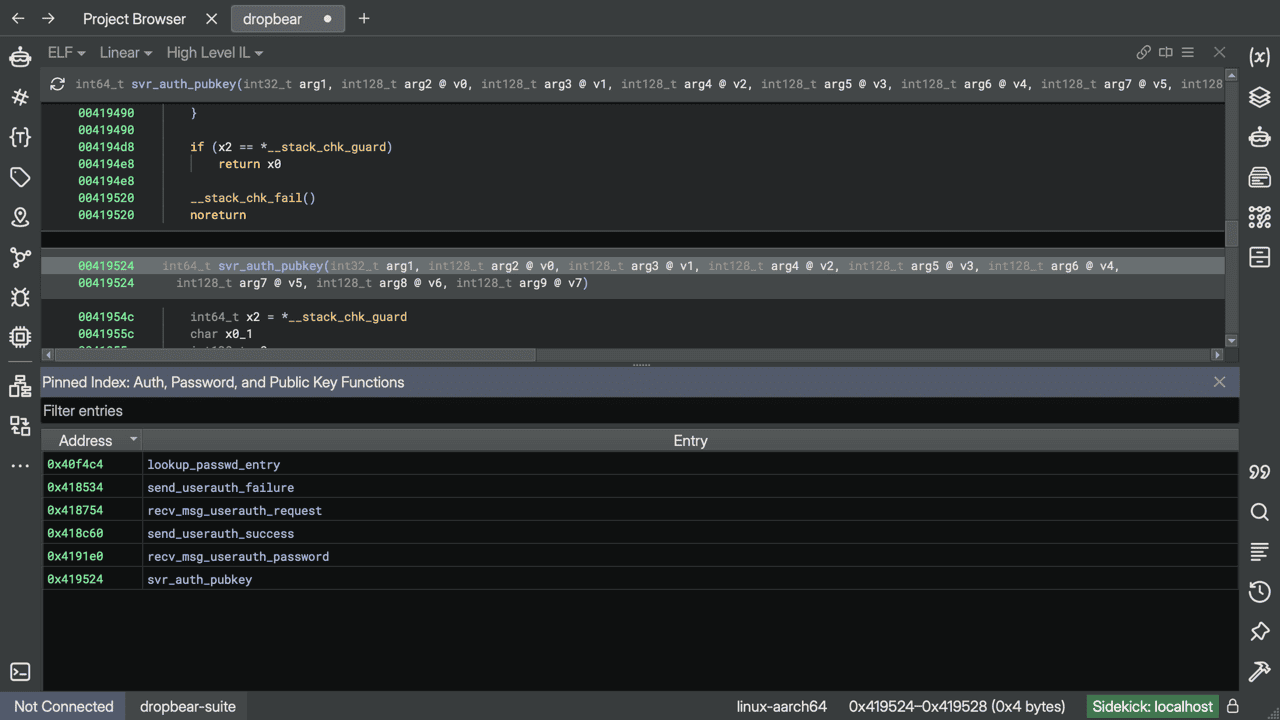
You can open any index in a dedicated pane that stays visible alongside the main Binary Ninja UI:
- Right-click the index in the browse list and select Pin Index to New Pane.
The pane opens in a horizontal split and contains the same filter-and-table view as the sidebar detail view. It updates live as the index changes. Close the pane to dismiss it.
Querying with BNQL
The Query Editor accepts any valid BNQL query. BNQL is a path-based language for selecting objects in a binary. For a complete syntax reference, see the BNQL Reference.
Some common patterns for building indexes:
All functions in the binary:
Functions that call a specific API:
Functions that call a large number of other functions:
High-entropy global variables (potential keys or constants):
Functions matching a semantic concept (requires semantic indexing):
Combining multiple result sets:
Result limit
The UI limits query results to 1000 entries per execution by default. You can change this limit in Edit > Preferences > Settings by searching for sidekick.ui.indexes.max_query_results. For queries that may produce more results than the configured limit, use the Python API to run the query without a limit.
Integration with Chat
The assistant can look up existing indexes and update them for you.
Use Chat when you want collaborative questions such as:
- "Which index already contains the TLS handlers?"
- "Do we already have an index for packet parsers?"
- "Update the crypto work queue index to include these new functions."
The assistant can:
- List the indexes in your workspace.
- Find one index by name.
- Search across index names, summaries, and entry content.
Entry IDs are left out of the assistant's index listings by default. It requests them only when it needs them to remove specific entries.
Using Indexes via the Python API
The sidekick.api module provides full CRUD access to indexes from Binary Ninja scripts. The examples below cover the most common patterns. For the full API surface, see Scripting and Automation with the Sidekick API.
Creating an index and populating it from a BNQL query
import sidekick.api as api

# Create the index on first run, or reuse it if it already exists.
api.get_index(bv, "interesting-functions", create_if_missing=True)

# Find all callers of recv and add them, skipping duplicates on later runs.
callers = api.execute_bnql(bv, 'callers("recv")')
entries = api.add_index_objects(
    bv,
    "interesting-functions",
    objects=callers,
    prevent_duplicates=True,
)

print({"index": "interesting-functions", "added": len(entries)})
Attaching metadata to entries
Each IndexEntry can carry an arbitrary dictionary of key/value metadata. Every unique key across all entries in an index becomes an additional column in the detail view table.
from sidekick.api import create_index, execute_bnql
from sidekick.binja.resources.index import make_index_entry

idx = create_index(bv, "scored-functions")
funcs = execute_bnql(bv, "/view/function")

entries_to_add = []
for func in funcs:
    entry = make_index_entry(
        obj=func,
        metadata={"block_count": len(list(func.basic_blocks))}
    )
    if entry:
        entries_to_add.append(entry)

idx.add_entries(entries_to_add, prevent_duplicates=True, notify=True)
The block_count key appears as a sortable column in the index detail once the entries are loaded.
Searching Across Indexes
The search box in the Resources sidebar searches across index names, type, summaries, source query and other metadata, and (for queries of two or more characters) entry contents, along with other workspace resources. Results are ordered by best match: exact title matches first, then title prefix and substring matches, then type, summary, metadata, and finally entry-content matches. Each matching row shows the number of matches (for example, "2 matches") at the right of its title row, and its second line previews the first match as field: text.
Indexes and Automation
Sidekick agents can read from and write to indexes during automated analysis. When an agent completes its work, any index changes it made are applied directly — there is no separate review or accept step.
Agents that write to indexes typically create or update manual indexes, accumulating entries across multiple analysis passes without overwriting previous results.
Tip
To direct an agent's output to a specific index, create the index before starting the task and reference its name in your instructions to the agent.