Working in the Sidekick View
The Sidekick view is where you work with Sidekick. It is the home of the lead agent — your single point of contact for the entire workspace. Ask it anything about the binary and it answers directly, delegating to specialist agents behind the scenes when the work benefits. You do not start or dig through separate chats, and you do not manage a context window: one persistent conversation carries your analysis forward, with the session briefing, findings, and recorded outcomes in adjacent tabs.
This is the intended home base for AI-first reverse engineering. Open it when you want to talk to Sidekick in the center pane and keep the lead agent, briefing, findings, and recorded outcomes together.
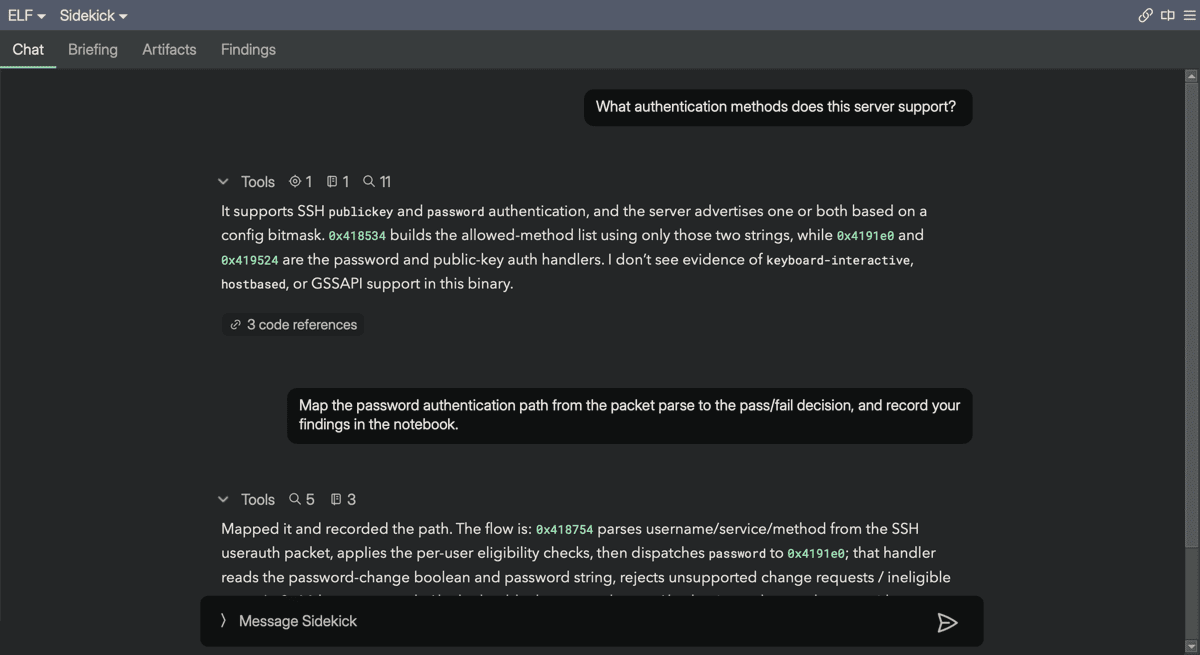
The Sidekick view and the Chats sidebar
Sidekick gives you two ways to converse, and they serve different purposes:
- The Sidekick view (this page) is the center-pane home of the lead agent. It holds one persistent Workspace Chat — a single ongoing conversation for the whole workspace — plus the briefing, artifacts, and findings. This is where most users work day to day. You never have to decide which chat to open or worry about losing context between them.
- The Chats sidebar is the traditional, thread-centric surface: a full list of conversations you can start, revisit, and branch yourself. It is also where the specialist agents the lead agent spawns appear, each as its own thread.
Reach for the Chats sidebar when you want flexibility — to run and manage several independent conversations by hand — or transparency — to watch or steer exactly what the delegated agents are doing. For everyday analysis, stay in the Sidekick view and let the lead agent coordinate the rest.
The Sidekick view is a center-pane view, alongside Binary Ninja's Linear, Graph, Hex, and IL views. Everything it shows is also reachable from the individual Sidekick sidebars; the difference is emphasis — the view puts the lead agent front and center, while the sidebars let you dock a single surface alongside a code view.
Opening the Sidekick View
You can open the Sidekick view in any of these ways:
- Choose
Plugins > Sidekick > Open Sidekick View. This opens the view on its Chat tab, or focuses it and switches to the Chat tab if it is already open. - Choose
Plugins > Sidekick > Open Session Briefing. This opens the same Sidekick view, but switches directly to its Briefing tab. - Select Sidekick from the view-type selector at the top of the view pane, alongside options like Linear and Graph.
Note
The view needs an active Sidekick session for the binary before it can show content. If you open it immediately after Binary Ninja starts, or before the session finishes connecting, you may briefly see a "Sidekick is starting..." placeholder. Each tab also loads its content the first time you switch to it, so a newly opened tab can show a brief "Loading..." placeholder.
Setting It as Your Default View
The setting is disabled by default. To make Sidekick the default view for newly opened binaries, open Edit > Preferences > Settings, search for Prefer Sidekick View, and enable it. When enabled, it applies once per open file: after Sidekick has shown its view for a file, later view-type changes for that file (switching tabs, splitting panes, navigating between synced views) no longer favor Sidekick. Closing and reopening the file resets it, so the next time you open that file, the Sidekick view is offered as the default again.
You can change the preference at any time. With the setting disabled, Binary Ninja opens binaries in its normal default view, and you can still switch to the Sidekick view manually using the methods above. See Settings Reference for the full setting description.
Chat Tab
The Chat tab holds a single, persistent conversation for the current workspace — a thread named Workspace Chat — rather than the full thread list you see in the Chat sidebar. Until you send your first message in it, the tab shows a home state instead of an empty transcript: a summary of the binary you're analyzing (architecture, platform, size, entry point) and a handful of suggested questions you can click to send immediately.
Above the conversation, a collapsible work queue drawer appears whenever there is active work to track. Each row is either:
- An active notebook entry with open tasks, showing a progress bar for the percentage of tasks completed on that entry and how long its most recent chat thread has been working
- An open blocker, shown with a "Blocker" chip and how long ago it was raised
The drawer is hidden entirely when there is no active work or open blockers. Clicking a task row opens the chat thread currently working on it — in this tab if it's the Workspace Chat thread, or in the Chat sidebar otherwise. Clicking a blocker row opens its notebook entry in Resources, focused on that blocker.
For everything else about chatting with Sidekick — the message composer, @-mentions, tool approvals, and the full multi-thread list — see Analyzing Binaries with Chat.
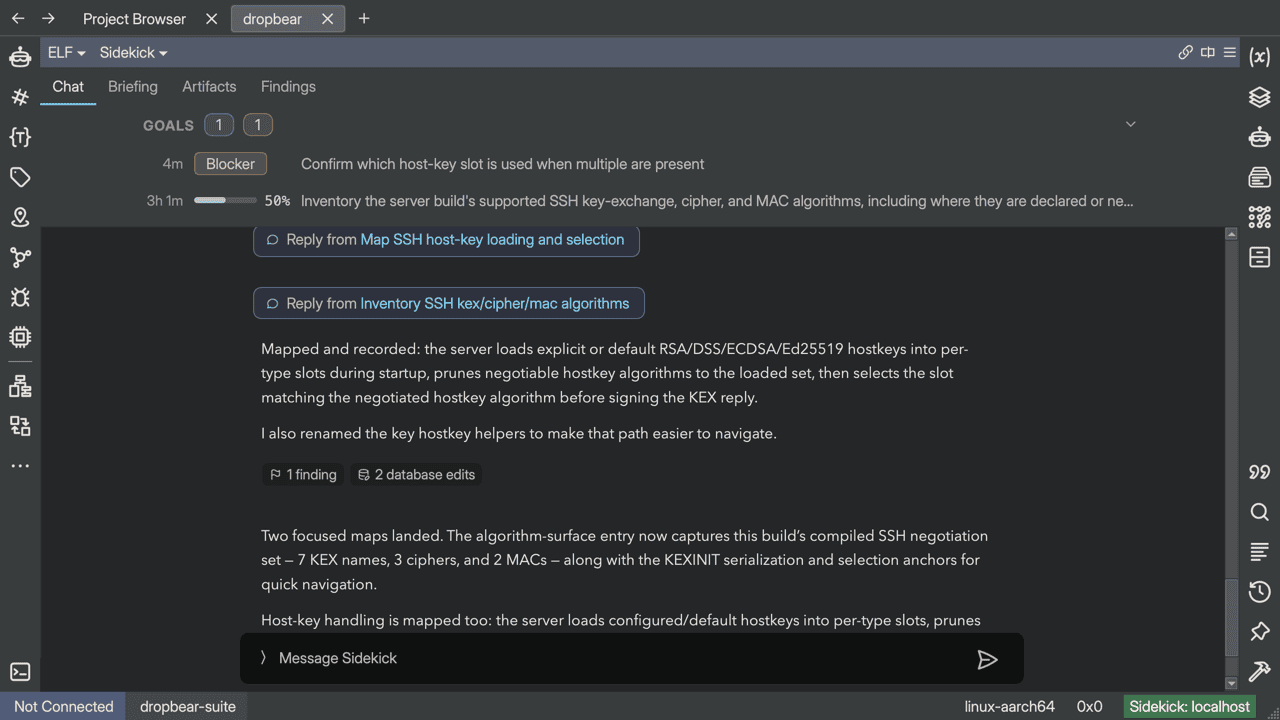
Briefing Tab
The Briefing tab shows the Session Briefing for the current workspace, with a compact binary-context summary above it. The briefing renders as a read-only document — you cannot type edits directly into it. Sidekick keeps it current automatically as your notebook activity accumulates, and you can ask for specific changes in chat if something needs correcting.
See Session Briefing for what each of the briefing's six sections contains.
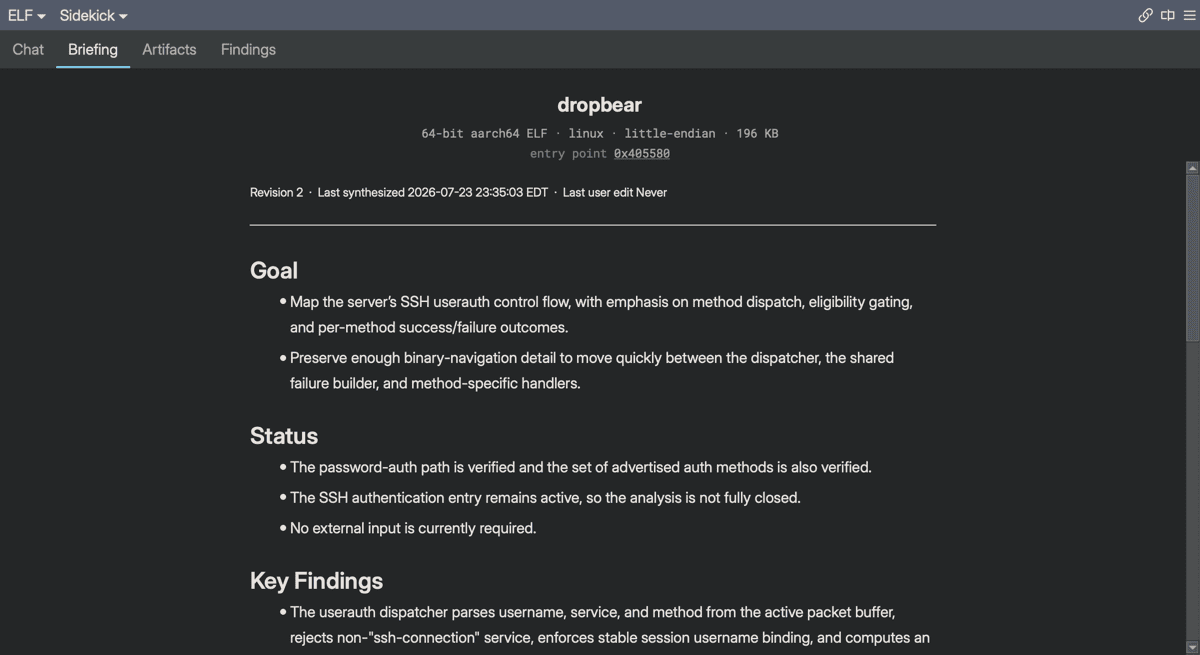
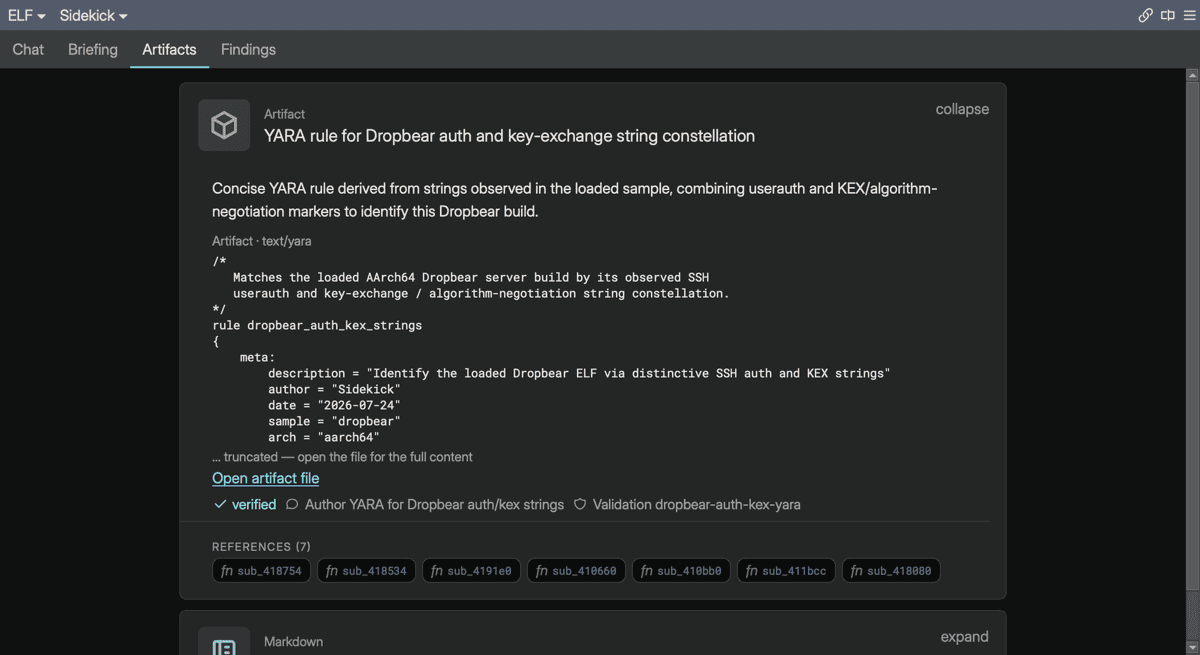
Artifacts Tab
The Artifacts tab is a feed of notebook artifact outcomes — concrete deliverables like YARA signatures, reports, and generated scripts — drawn from every entry in the workspace. Only draft and verified outcomes appear; rejected outcomes are excluded from the feed.
Each card is the same outcome card you see in the notebook detail view, including its status rail, provenance edge lines, references, and Ask in chat button. See Working with Outcomes for how to read a card and how outcomes move through their status lifecycle.
Findings Tab
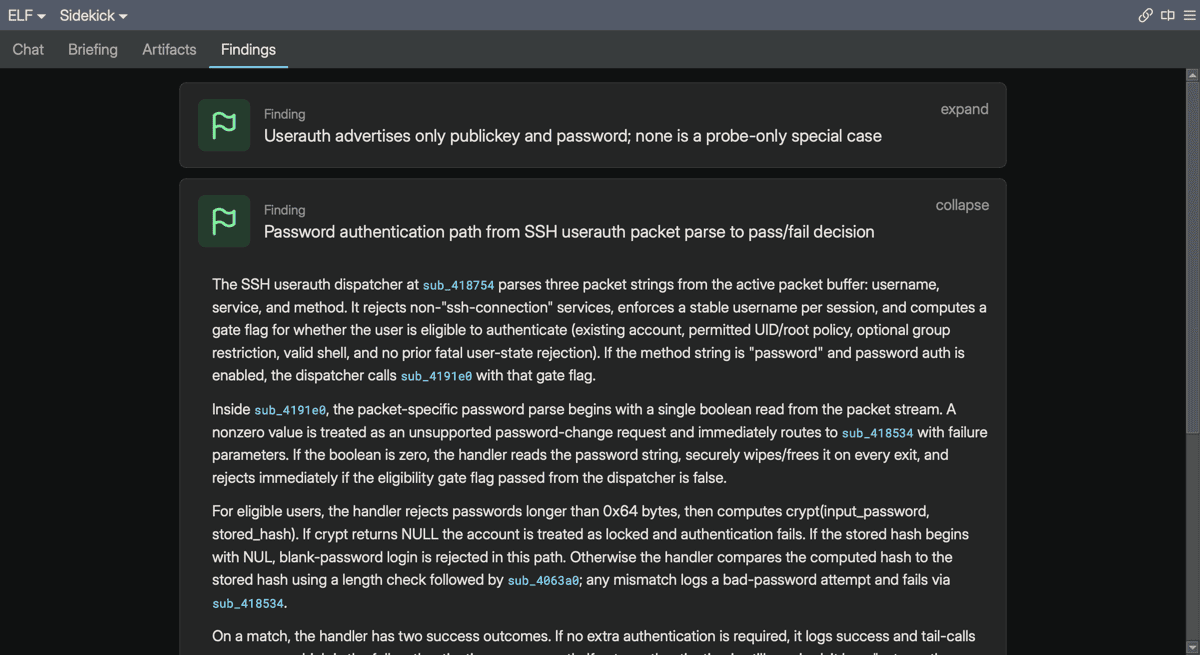
The Findings tab works the same way as the Artifacts tab, but shows notebook finding outcomes instead — reusable, anchored facts discovered during analysis. Only draft and verified findings appear; rejected findings are excluded.