Binary Ninja Sidekick
Sidekick is an AI-powered service and plugin for Binary Ninja that automates reverse engineering tasks.
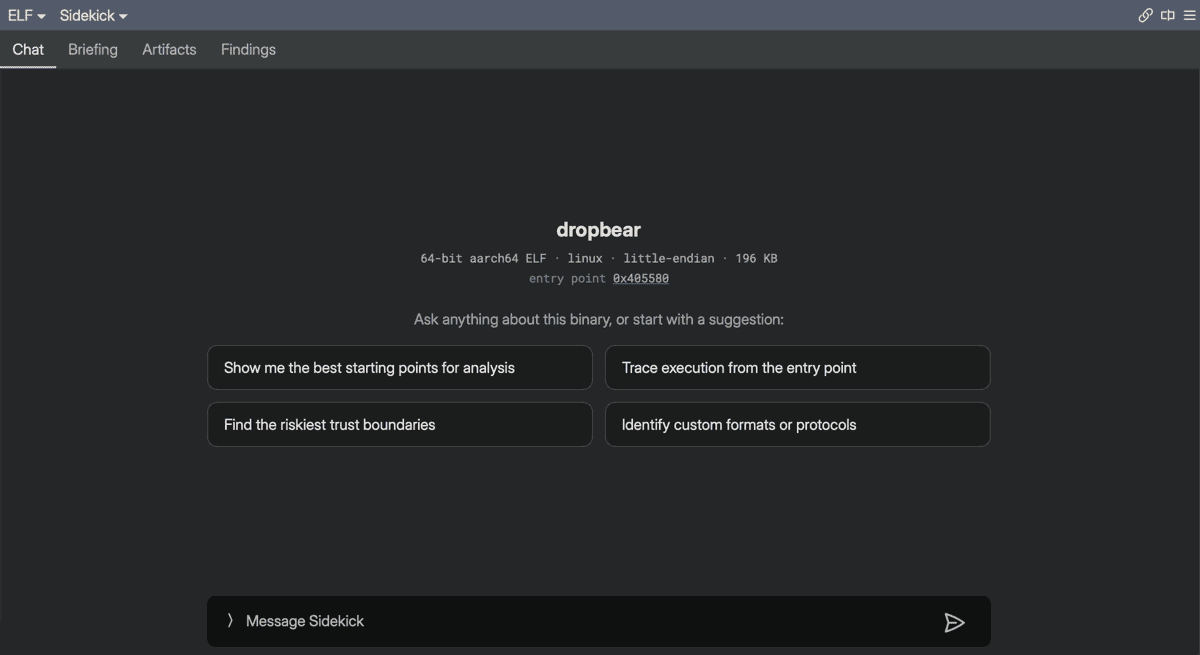
Sidekick puts an AI assistant at the center of reverse engineering. Choose Plugins > Sidekick > Open Sidekick to open the Sidekick tab in the main pane — central command for the workspaces in your window. The tab opens on a ledger of your workspaces. Select one, and its Chat tab is that workspace's lead agent, which you can talk to about anything in the workspace. Each lead agent delegates to specialist agents behind the scenes, so you get answers without starting chats, hunting through old conversations, or managing a context window. When you want to manage threads yourself or watch the delegated agents directly, the Chats sidebar is there for flexibility and transparency. Start in the Sidekick tab; reach for the sidebar when you need it.
This documentation is organized into three sections to help you find what you need:
Tutorials
Start here if you are new.
Step-by-step lessons that walk you through Sidekick from installation to your first real analysis.
- Getting Started: Install the plugin and set up your account.
- How Sidekick Analyzes Binaries: Learn what the AI agent can do and how it works.
- Understanding Tool Permissions: Control what Sidekick is allowed to modify.
How-to Guides
Practical recipes for real-world tasks.
Focused guides for things you want to accomplish with Sidekick.
- Working in the Sidekick Tab: Start here — central command for the workspaces in this window: a ledger of your workspaces, with each workspace's Chat (its lead agent), Memory, Tasks, Changes, and Artifacts in one place.
- Analyzing Binaries with Chat: The thread-centric Chats sidebar, for managing multiple conversations and watching delegated agents.
- Browsing Workspace Resources: Find and manage notebook entries, indexes, code maps, and repositories in one sidebar.
- Recording Analysis in the Notebook: Capture findings and track analysis goals.
- Editing Binaries with Suggestions: Review and apply AI-proposed changes.
- Building and Using Indexes: Organize points of interest for navigation and search.
Reference
Technical facts and details.
Look up settings, syntax, and storage details.
- Sidekick Menu Reference: Canonical list of everything under
Plugins > Sidekick. - Settings: Configuration options and API keys.
- BNQL: Binary Ninja Query Language syntax.
- Data Storage: Where Sidekick stores analysis data.